Best Vertical Mouse for MacBook Pro Users (2026)
Best vertical mouse for MacBook Pro in 2026: Bluetooth picks with USB-C charging, macOS cursor fix, multi-device pairing and Mac ecosystem tips. See top 5 →
Updated 2026-03-19
30-Second Video: Best Vertical Mouse for MacBook Pro Users
30-second walkthrough for best vertical mouse for macbook pro users.
Quick Answer: Best Vertical Mouse for MacBook Pro Users (2026)
Best Vertical Mouse for MacBook Pro Users (2026)
By Dr. Alex Chen · Last updated March 19, 2026
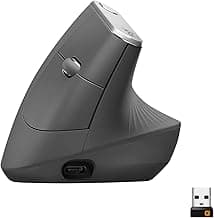
The best vertical mouse for MacBook Pro is the Logitech MX Vertical — it connects via Bluetooth (no dongle eating your limited USB-C ports), charges via USB-C (matching your MacBook cable), runs Logi Options+ natively on macOS for per-app button customization, and tracks on glass surfaces. It is the only vertical mouse with full Mac software support. For budget Mac users, the iClever TM209G at $20 provides Bluetooth connectivity without the software.
MacBook Pro users face a specific set of constraints that most vertical mouse reviews ignore. You have 2–4 USB-C ports — not USB-A. A 2.4 GHz dongle does not plug in without an adapter. You probably work on glass or aluminum surfaces that some sensors cannot track on. macOS applies a non-linear cursor acceleration that makes many mice feel imprecise. And you likely switch between a MacBook, an iPad, and possibly a desktop Mac throughout the day.
A vertical mouse that works perfectly on a Windows desktop may be frustrating on a MacBook. This guide evaluates vertical mice specifically through the Mac ecosystem lens — connectivity, software, charging, sensor compatibility, and multi-device workflow.
Why MacBook Pro Users Need Bluetooth
The Port Problem
MacBook Pro Model USB-C Ports USB-A Ports MagSafe Bottom Line
14" M3/M4 (base) 2 0 1 Every port is precious
14" M3 Pro/M4 Pro 3 0 1 One for display, one for charging = 1 remaining
16" M3 Pro/M4 Pro 3 0 1 Same constraint
16" M3 Max/M4 Max 3 0 1 High-end work = ports in demand
A 2.4 GHz dongle requires either:
A USB-C to USB-A adapter ($8–15) — adds bulk, easy to lose, occupies a port
A USB-C hub ($30–80) — works but now your mouse depends on a hub
Bluetooth uses the MacBook's built-in radio. Zero ports used. Zero adapters. Zero dongles to lose. The mouse connects directly to the laptop and reconnects automatically when you open the lid.
Beyond Port Count
Bluetooth solves additional Mac-specific issues:
Clamshell mode: Bluetooth mice connect immediately when you open the MacBook, before any hub or dongle is recognized
Hot-desking: Pair once, connect anywhere — no dongle to carry between locations
iPad compatibility: The same Bluetooth mouse works on your iPad without any adapter
The macOS Cursor Acceleration Problem
What It Is
macOS applies a non-linear cursor acceleration curve that differs fundamentally from Windows. The issue:
Windows (linear by default): Move the mouse 1 inch slowly = X pixels. Move it 1 inch quickly = X pixels. The ratio is constant. Speed does not change the distance-per-inch.
macOS (accelerated by default): Move the mouse 1 inch slowly = Y pixels. Move the mouse 1 inch quickly = 3Y pixels. The faster you move, the more distance the cursor covers per inch of physical movement. The relationship is a curve, not a line.
Why It Feels Wrong with Vertical Mice
Apple designed this acceleration curve for the Magic Mouse and trackpad — devices with small surface areas where acceleration helps cover large screens with small movements. A vertical mouse uses forearm-pivot movement with a larger range of motion. The acceleration curve amplifies the larger movements disproportionately, making the cursor feel "floaty" at fast speeds and "sluggish" at slow speeds. The inconsistency makes precision clicking feel unreliable.
How to Fix It
Solution Cost Effort Effect
Logitech Options+ (for Logitech mice) Free Low Applies Logitech's own tracking profile, overriding macOS acceleration
LinearMouse (open-source app) Free Low Disables macOS acceleration entirely — linear 1:1 tracking
SteerMouse (Mac utility) ~$20 Low Full cursor customization — acceleration curves, per-app sensitivity
BetterMouse (Mac utility) ~$8 Low Similar to LinearMouse with additional button remapping
macOS System Settings Free Medium Adjusting tracking speed helps but does not eliminate the acceleration curve
Recommended Approach
If using MX Vertical: Install Logi Options+. It handles acceleration automatically and adds per-app button customization.
If using any other vertical mouse: Install LinearMouse (free, open-source). It provides a simple toggle to disable macOS acceleration and set a fixed cursor speed. Most users find this instantly improves vertical mouse feel on macOS.
Comparison Table: 5 Best Vertical Mice for MacBook Pro
Mouse Bluetooth USB-C Charge Mac Software Multi-Device Glass Tracking Price Mac Rating
Logitech MX Vertical ✅ ✅ ✅ Logi Options+ 3 devices ✅ Darkfield ~$90 ★★★★★
ProtoArc EM01 ✅ ✅ ❌ Basic only 3 devices ❌ ~$30 ★★★★☆
iClever TM209G ✅ ✅ ❌ Basic only 2 devices ❌ ~$20 ★★★☆☆
Nulea M501 ✅ ✅ ❌ Basic only 2 devices ❌ ~$16 ★★★☆☆
Anker Vertical ❌ 2.4 only ❌ Micro-USB ❌ 1 device ❌ ~$25 ★★☆☆☆
Detailed Reviews
1. Logitech MX Vertical — Best for Mac Ecosystem
Why it dominates on Mac: The MX Vertical is the only vertical mouse with genuine Mac-native software. Logi Options+ runs natively on macOS (Apple Silicon optimized), providing features that no other vertical mouse offers on Mac:
Per-app button customization: Set different button actions in Safari, VS Code, Figma, and Slack. The gesture button (hold and move) triggers macOS-specific actions — swipe up for Mission Control, swipe down for App Exposé, swipe left/right for Spaces.
Logitech Flow: Move your cursor seamlessly from your MacBook to a second Mac (or even a Windows PC). The cursor crosses the screen edge and appears on the other machine. Files drag between machines. This works alongside Apple's Universal Control — you can use either or both.
Darkfield sensor: Tracks on glass, marble, lacquered wood, and polished metal — surfaces common in Mac workspaces that cheaper optical sensors fail on. No mouse pad required.
USB-C charging: One cable charges your MacBook, your iPhone, and your MX Vertical. No micro-USB cable lurking in a drawer.
Pros:
Full Logi Options+ on macOS — per-app buttons, gestures, Flow
Bluetooth multi-device (3 devices) — MacBook + iPad + desktop Mac
USB-C charging — matches Mac ecosystem cables
Darkfield sensor tracks on glass and glossy surfaces
4000 DPI — adjustable in Logi Options+ with Mac-optimized acceleration
4-month battery — charge once per season
1-minute quick charge = 3 hours of use
57° angle — comfortable, easy adaptation
Apple Silicon native app — no Rosetta overhead
Cons:
~$90 — most expensive option
135g — heavier than alternatives
78 mm grip — too wide for small hands
125 Hz polling rate
No left-hand model
Logi Options+ requires an account (Logitech ID)
Unifying Receiver is USB-A (irrelevant if using Bluetooth)
Search for Logitech MX Vertical on Amazon (https://www.amazon.com/s?k=Logitech+MX+Vertical)&tag=theforge05-20
Best for: Mac users who want the complete package — native software, gesture support, multi-device, glass tracking. The only vertical mouse with a genuine Mac-first experience.
2. ProtoArc EM01 — Best Mid-Range for Mac
Why it suits Mac users: The ProtoArc EM01 delivers 80% of the MX Vertical's Mac functionality at one-third the price. Bluetooth connects to 3 devices (matching the MX Vertical), USB-C charges, and 4000 DPI provides smooth tracking. What you sacrifice is software — no Mac app for per-app customization, no gestures, no Flow.
For Mac users who need multi-device Bluetooth and USB-C but do not require per-app button mapping, the EM01 provides excellent value. Pair with LinearMouse (free) to fix macOS acceleration, and you have a highly functional Mac vertical mouse for $30.
Pros:
3-device Bluetooth — matches MX Vertical
USB-C charging — Mac ecosystem compatible
4000 DPI — smooth cursor on Retina displays
~$30 — one-third MX Vertical price
120g — lighter than MX Vertical
~60° angle — good ergonomic benefit
2.4 GHz dongle included as backup
Works on macOS, iPadOS, Windows, Linux
Cons:
No Mac software — basic mouse functionality only
No gesture support without third-party tools
No cross-computer Flow
Does not track on glass
Build quality below MX Vertical
No per-app button customization natively
Scroll wheel functional but not Logitech-smooth
Occasional Bluetooth re-pairing after macOS updates
Search for ProtoArc EM01 on Amazon (https://www.amazon.com/s?k=ProtoArc+EM01+Vertical+Mouse)&tag=theforge05-20
Best for: Budget-conscious Mac users who want multi-device Bluetooth and USB-C without the MX Vertical price. Pair with LinearMouse for the best Mac experience.
3. iClever TM209G — Best Budget Bluetooth for Mac
Why it works on Mac: Bluetooth + USB-C at $20. For Mac users who want basic dongle-free vertical mouse functionality at the lowest possible price, the iClever delivers. The 2400 DPI is sufficient for standard and Retina displays. The 98g weight makes it comfortable for extended use. The 65 mm grip width fits smaller hands better than the MX Vertical.
The tradeoff is feature depth: no Mac software, no multi-device Bluetooth (1 BT + 1 dongle), no glass tracking. But the core function — Bluetooth vertical mouse that works on MacBook without occupying a port — is fully functional.
Pros:
~$20 — cheapest Bluetooth vertical mouse for Mac
Bluetooth + 2.4 GHz dual-mode
USB-C charging
98g — light and comfortable
2400 DPI — adequate for Retina displays
65 mm grip — fits smaller hands
Quiet clicks — good for shared spaces
Pairs with macOS immediately
Cons:
1 Bluetooth device only (+ 1 dongle device)
No Mac software
Bluetooth wake delay from sleep (1–2 seconds)
Does not track on glass
No gesture or per-app customization
Build quality is budget tier
5 buttons only
Search for iClever TM209G on Amazon (https://www.amazon.com/s?k=iClever+TM209G+Vertical+Mouse)&tag=theforge05-20
Best for: MacBook users on a tight budget who need dongle-free Bluetooth at the lowest price. For small-hand Mac users, see our best vertical mouse for small hands (/best-vertical-mouse-small-hands) guide.
4. Nulea M501 — Cheapest Bluetooth Mac Option
Why it is here: At ~$16, the Nulea M501 is the absolute cheapest way to get a Bluetooth vertical mouse on a MacBook. Bluetooth connects, USB-C charges, and the ~60° angle provides ergonomic benefit. If you want to test whether a vertical mouse works for your Mac setup before investing, the Nulea is the minimum-risk entry point.
Pros:
~$16 — lowest possible Bluetooth entry
Bluetooth + 2.4 GHz
USB-C charging
100g — lightest option
2400 DPI
~60° angle
Cons:
Budget build quality
Bluetooth wake delay (1–3 seconds)
No Mac software
Button clicks feel mushy
Unproven long-term reliability
Does not track on glass
Right-hand only
Search for Nulea M501 on Amazon (https://www.amazon.com/s?k=Nulea+M501+Vertical+Mouse)&tag=theforge05-20
Best for: Absolute minimum spend to test Bluetooth vertical mouse on Mac before committing to the MX Vertical.
5. Anker Vertical — NOT Recommended for MacBook Pro
Why it is listed (as a warning): The Anker Vertical Ergonomic is the most-recommended budget vertical mouse online. Many Mac users buy it based on general reviews without realizing it is a poor match for MacBook Pro:
No Bluetooth — 2.4 GHz dongle only
USB-A dongle — does not plug into MacBook Pro without a USB-C adapter
Micro-USB charging — different cable from everything else in the Mac ecosystem
No Mac software — basic plug-and-play only
The Anker is an excellent mouse for Windows desktops with USB-A ports. It is a frustrating choice for MacBook Pro users. If you own one and want Mac compatibility, the USB-C adapter works — but the iClever TM209G at $20 provides Bluetooth connectivity natively for less hassle.
For a broader comparison of budget vertical mice including Mac compatibility, see our best vertical mouse under $50 (/best-vertical-mouse-under-50) guide.
USB-C Compatibility: Why It Matters
The One-Cable Ecosystem
Modern Mac users have consolidated on USB-C/Thunderbolt. Your MacBook charges via USB-C. Your iPhone 15+ charges via USB-C. Your AirPods Pro charge via USB-C. Your iPad charges via USB-C. Adding a micro-USB or proprietary cable for a mouse breaks this ecosystem.
Charging Compatibility Table
Mouse Charging Port Same Cable as MacBook? Charge Frequency
MX Vertical USB-C ✅ Yes Every 4 months
ProtoArc EM01 USB-C ✅ Yes Every 3 months
iClever TM209G USB-C ✅ Yes Every 2–3 months
Nulea M501 USB-C ✅ Yes Every 2 months
Anker Vertical Micro-USB / AA ❌ No AA battery or monthly micro-USB
The convenience factor is real: when your mouse dies, grab the cable that is already on your desk (the one charging your MacBook or iPhone) and plug in for a minute. No hunting for a micro-USB cable that you last used in 2021.
Multi-Device Pairing: MacBook + iPad + Desktop
The Mac Ecosystem Workflow
Many Mac users work across devices:
Scenario Devices Ideal Mouse
Laptop + desktop Mac MacBook Pro + iMac/Mac Studio MX Vertical (3 BT devices, Flow between Macs)
Laptop + iPad MacBook Pro + iPad Pro/Air MX Vertical or ProtoArc EM01 (BT multi-device)
Three devices MacBook + iPad + desktop Mac MX Vertical (3 BT devices + Universal Control)
Laptop only MacBook Pro only Any Bluetooth vertical mouse
Universal Control vs Logitech Flow
Mac users have two cross-device cursor options:
Feature Universal Control (Apple) Logitech Flow
Works with Any Bluetooth mouse Logitech mice only
Cross-device Mac ↔ Mac, Mac ↔ iPad Mac ↔ Mac, Mac ↔ Windows
File dragging ✅ Yes ✅ Yes
Setup Automatic (same Apple ID, same network) Logi Options+ on both machines
Requires software Built into macOS/iPadOS Logi Options+ on each machine
Mouse stays paired to Primary Mac only Each machine independently
With MX Vertical: You get both. Universal Control for Mac-iPad seamless cursor movement. Logitech Flow for Mac-Windows cross-platform sharing. These can coexist.
With non-Logitech mice: Universal Control only. Still excellent for Mac-iPad workflows.
macOS Features: Gestures, Mission Control, Universal Control
Gesture Integration
macOS relies heavily on gestures for window management. A standard mouse provides no gesture access. The MX Vertical's gesture button fills this gap:
Gesture (MX Vertical + Logi Options+) macOS Action
Gesture button + move up Mission Control
Gesture button + move down App Exposé (show all windows of current app)
Gesture button + move left Switch to right Space
Gesture button + move right Switch to left Space
Gesture button click Launchpad (or custom action)
Without Logi Options+, non-Logitech mice cannot natively trigger these gestures. Third-party tools fill the gap:
Tool Cost What It Does
BetterTouchTool ~$10 (license) Maps any mouse button to any macOS gesture, shortcut, or script
SteerMouse ~$20 Button remapping + cursor customization + gesture assignment
Karabiner-Elements Free Keyboard and mouse remapping — advanced, requires configuration
macOS Scroll Direction
macOS defaults to "natural" scrolling (scroll down moves content up — matching trackpad behavior). This feels inverted to mouse users coming from Windows. You can reverse scroll direction in System Settings > Mouse, but this also reverses your trackpad if you use both.
Fix: Use Scroll Reverser (free Mac utility) to set independent scroll directions for mouse and trackpad. This lets your trackpad scroll naturally while your mouse scrolls traditionally.
Mac-Specific Software and Tools
Essential Mac Tools for Non-Logitech Vertical Mice
If you buy any vertical mouse other than the MX Vertical, these free/affordable Mac tools make it feel native:
Tool Purpose Cost
LinearMouse Disables macOS cursor acceleration — makes cursor movement 1:1 linear Free
Scroll Reverser Independent scroll direction for mouse vs trackpad Free
BetterTouchTool Map mouse buttons to macOS gestures and shortcuts ~$10
Karabiner-Elements Advanced button and modifier remapping Free
For Logitech MX Vertical Users
Logi Options+ handles acceleration, gestures, per-app settings, and Flow in one app. The additional tools above are unnecessary — Logi Options+ covers everything. Install it from logi.com/options (https://www.logitech.com/software/options-plus.html) after pairing the mouse.
For the full wireless vertical mouse comparison including non-Mac-specific picks, see our best wireless vertical mouse (/best-wireless-vertical-mouse) guide. For the broader Mac vertical mouse landscape, see our best vertical mouse for Mac (/best-vertical-mouse-for-mac) guide.
Frequently Asked Questions
Do vertical mice work with MacBook Pro?
Yes — Bluetooth vertical mice connect natively via macOS Bluetooth. No drivers needed for basic use. Logi Options+ (for Logitech mice) or LinearMouse (free, for others) improves the cursor feel on macOS.
Should I get Bluetooth or a dongle for MacBook Pro?
Bluetooth. MacBook Pro has limited USB-C ports and no USB-A. A dongle requires an adapter and wastes a port. Bluetooth uses the built-in radio — zero ports, zero adapters, zero dongles.
Why does my cursor feel weird on Mac?
macOS applies non-linear cursor acceleration designed for Apple's trackpad. Vertical mice feel floaty or imprecise. Fix: install Logi Options+ (Logitech mice) or LinearMouse (any mouse, free) to linearize the cursor.
Can I use a vertical mouse with MacBook and iPad?
Yes — Bluetooth multi-device mice (MX Vertical, ProtoArc EM01) pair with both. iPadOS has full mouse support. Switch devices with a button press on the mouse.
Is the MX Vertical the best for Mac?
Yes — it is the only vertical mouse with native macOS software (Logi Options+), per-app button customization, gesture support, USB-C charging, and glass tracking. No other vertical mouse matches its Mac integration.
Do macOS gestures work with vertical mice?
Not natively. The MX Vertical with Logi Options+ maps gestures to its gesture button. For other mice, BetterTouchTool or SteerMouse adds gesture mapping to any button.
Does Universal Control work with vertical mice?
Yes — Universal Control works with any Bluetooth mouse. Move the cursor to the edge of your Mac screen and it transfers to your nearby iPad or second Mac seamlessly.
What about the Anker Vertical for Mac?
Not recommended. It is 2.4 GHz only (no Bluetooth), uses a USB-A dongle (needs adapter for MacBook), and charges via micro-USB. The iClever TM209G at $20 provides Bluetooth natively.
Sources & Methodology
This guide evaluates vertical mice for MacBook Pro based on macOS compatibility, Bluetooth connectivity, charging standards, and Mac ecosystem integration.
Apple References:
macOS cursor acceleration: macOS applies non-linear acceleration curve to mouse input — documented in Apple Human Interface Guidelines and observable in System Settings behavior
Universal Control: Apple feature enabling cross-device cursor sharing between Mac and iPad — available since macOS 12.3 and iPadOS 15.4
MacBook Pro port configurations from Apple product specifications
Software References:
Logi Options+: Logitech's native macOS/Windows mouse customization software — logitech.com (https://www.logitech.com/software/options-plus.html)
LinearMouse: Open-source macOS utility for disabling cursor acceleration — linearmouse.app (https://linearmouse.app/)
SteerMouse, BetterTouchTool, Scroll Reverser: third-party macOS utilities for mouse customization
Ergonomic References:
OSHA: Computer Workstation eTool — osha.gov (https://www.osha.gov/)
NIOSH: Ergonomics and Musculoskeletal Disorders — cdc.gov/niosh (https://www.cdc.gov/niosh/)
Product References:
Mouse specifications from manufacturer product pages (Logitech, ProtoArc, iClever, Nulea, Anker)
Pricing reflects typical US retail at publication
Methodology notes:
Mac compatibility assessed on: Bluetooth support (native pairing), macOS software availability, USB-C charging, glass tracking, multi-device support, and gesture integration
macOS cursor acceleration behavior verified through user reports and macOS System Settings documentation
This guide provides product comparison information, not medical advice
We may earn a commission on purchases at no additional cost to you; affiliate relationships do not influence recommendations
Internal links referenced:
Best Vertical Mouse for Small Hands (/best-vertical-mouse-small-hands)
Best Vertical Mouse Under $50 (/best-vertical-mouse-under-50)
Best Wireless Vertical Mouse (/best-wireless-vertical-mouse)
Best Vertical Mouse for Mac (/best-vertical-mouse-for-mac)
Key takeaway: pick the smallest mouse that still supports your palm, then prioritize low click force.
Top Picks Quick Comparison
Fast shortlist for decision-first readers. Full table remains below for complete detail.
| Product | Best For | Price | Rating |
|---|---|---|---|
| Logitech MX Vertical | Best overall for MacBook Pro | $$$ | 4.5/5 |
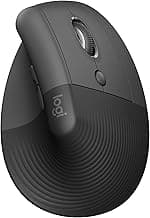
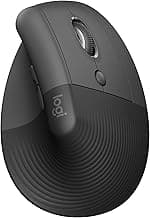
| Logitech Lift | Best compact Mac workflow fit | $$ | 4.6/5 |
| iClever TM209G | Best budget Bluetooth option | $ | 4.2/5 |
| Anker Ergonomic Vertical | Best value wireless alternative | $ | 4.3/5 |
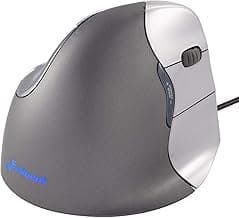
| Evoluent VerticalMouse 4 | Best deep ergonomic contour | $$$ | 4.4/5 |
Real Product Photos: All Reviewed Models
Each image below is a real product listing photo stored locally for faster loads and stable rendering.

Comparison Table: Best Vertical Mouse for MacBook Pro Users (2026)
Key takeaway: comfort fit beats raw specs for long-term productivity.
| Product | Best For | Price Band | Rating | Link |
|---|---|---|---|---|
| Logitech MX Vertical | Best overall for MacBook Pro | $$$ | 4.5/5 | Check on Amazon |
| Logitech Lift | Best compact Mac workflow fit | $$ | 4.6/5 | Check on Amazon |
| iClever TM209G | Best budget Bluetooth option | $ | 4.2/5 | Check on Amazon |
| Anker Ergonomic Vertical | Best value wireless alternative | $ | 4.3/5 | Check on Amazon |
| Evoluent VerticalMouse 4 | Best deep ergonomic contour | $$$ | 4.4/5 | Check on Amazon |
Note: Amazon links may be affiliate links and can generate commissions at no extra cost to you.