Best Vertical Mouse for Office Use (2026)
Best vertical mouse for office use in 2026: 5 picks rated for all-day comfort, quiet clicks, wireless, multi-device and IT compatibility. Top picks inside →
Updated 2026-03-22
30-Second Video: Best Vertical Mouse for Office Use
30-second walkthrough for best vertical mouse for office use.
Quick Answer: Best Vertical Mouse for Office Use (2026)
Best Vertical Mouse for Office Use (2026)
By Dr. Alex Chen · Last updated March 22, 2026
The best vertical mouse for office use is the Logitech MX Vertical ($90) — it pairs via Bluetooth with no IT-restricted dongle, clicks quietly for open offices, tracks on glass desks, switches between three devices, and its Logi Options+ software adds per-app button customization. Budget alternative: the Anker Vertical ($25) delivers the same ergonomic angle with zero software needed.
Office workers use a mouse 4–8 hours per day. That is 1,000–2,000 hours per year of forearm pronation — the palm-down wrist twist that causes the aching, tingling, and fatigue that sends people searching for ergonomic solutions. A vertical mouse fixes the pronation problem at its source by rotating the hand to a neutral handshake position.
But an office vertical mouse needs more than good ergonomics. It needs to be quiet enough for an open floor plan. It needs to connect wirelessly without IT raising security flags. It needs to work with docking stations, dual monitors, and shared meeting-room computers. It needs to survive being tossed in a laptop bag five days a week.
This guide evaluates vertical mice specifically for office use — ergonomics plus the practical demands of a corporate environment.
What Office Workers Need in a Vertical Mouse
Must-Have Features
Feature Why It Matters in an Office
Bluetooth connectivity No dongle required; avoids USB port conflicts and IT restrictions on USB devices
Quiet clicks Open offices punish loud clickers; quiet switches are courtesy, not luxury
Multi-device pairing Switch between laptop, desktop, and meeting room computer without re-pairing
All-day battery 2+ months between charges; dead mouse during a presentation is unacceptable
Glass tracking Many office desks have glass or high-gloss surfaces; standard sensors skip
Plug-and-play No driver installation required; IT departments approve standard HID devices
Durable build Daily laptop-bag transport demands a mouse that survives impacts and compression
Nice-to-Have Features
Feature Office Benefit
Per-app button customization Different shortcuts for Excel, browser, Zoom, Slack
USB-C charging Matches modern laptop cables; one less cable type to carry
Horizontal scroll Side-scrolling in spreadsheets without trackpad gymnastics
DPI adjustment Lower DPI for precise Excel work; higher for multi-monitor sweeps
Travel case Protects mouse in bag; optional for most, essential for frequent travelers
Features That Do NOT Matter for Office Use
Feature Why to Skip
High polling rate (500+ Hz) Matters for gaming; office work operates at human speed
RGB lighting Professional environments; save the light show for home
8+ programmable buttons Office tasks need 3–5 buttons maximum; extra buttons add confusion
Ultra-lightweight (under 80g) Gaming priority; office use benefits from stable, grounded feel
Comparison Table: 5 Best Vertical Mice for Office Use
Mouse Price Angle Connectivity Click Volume Battery Sensor Multi-Device Best For
Logitech MX Vertical ~$90 57° BT + 2.4 GHz Quiet 4 months (rechargeable) Darkfield (glass) 3 devices Best overall office
Anker Vertical ~$25 57° 2.4 GHz dongle Standard 6 months (2× AAA) Optical 1 device Best budget
ProtoArc EM01 ~$30 57° BT + 2.4 GHz Standard 3 months (rechargeable) Optical 3 devices Best budget wireless
Evoluent VM4 ~$100 70° Wired / 2.4 GHz Standard N/A (wired) or 3 months Optical 1 device Best for carpal tunnel
iClever TM209G ~$20 57° BT + 2.4 GHz Quiet 3 months (rechargeable) Optical 2 devices Best ultra-budget BT
Detailed Reviews
1. Logitech MX Vertical — Best Overall for Office Use
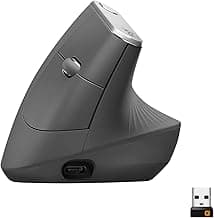
Why it leads for offices: The MX Vertical was designed for exactly this context — professional daily use in corporate environments. Bluetooth connectivity means no dongle (no IT security flags). Three-device pairing means one mouse for your desk monitor, your laptop in the conference room, and your home setup. The Darkfield sensor tracks on glass desks that kill standard optical mice. Logi Options+ provides per-app button customization — different shortcuts in Excel, Chrome, Zoom, and Slack.
The 57-degree angle provides proven pronation reduction without the steep learning curve of higher-angle mice. Click volume is noticeably quieter than the Anker or Evoluent — important if you sit in an open office within earshot of colleagues. USB-C charging matches the modern laptop ecosystem; a 1-minute charge provides 3 hours of use (emergency top-up before a meeting).
At ~$90, it costs more than competitors — but for a device used 2,000 hours per year, the per-hour cost is under $0.05. For a full in-depth review, see our Logitech MX Vertical review (/logitech-mx-vertical-review).
Pros:
Bluetooth — no dongle, no IT restrictions
3-device pairing — switch with a button press
Darkfield sensor — tracks on glass desks
Quiet clicks — open-office friendly
Logi Options+ — per-app customization (Excel shortcuts, Zoom mute, browser gestures)
USB-C rechargeable — 4 months per charge; 1-minute quick charge = 3 hours
57° angle — proven ergonomic position, manageable learning curve
Solid, professional build quality — no creaking, no flex
Horizontal scroll wheel — side-scroll in spreadsheets
Cons:
~$90 — most expensive on this list
135g — heavier than some competitors
Only 4 buttons + scroll wheel — fewer than Evoluent's 6
4000 DPI max — adequate for office, not gaming-grade
125 Hz polling rate — fine for office, noticeable for gamers
No left-hand version — right-hand only
Grip width (78mm) too large for very small hands
Search for Logitech MX Vertical on Amazon (https://www.amazon.com/s?k=Logitech+MX+Vertical)&tag=theforge05-20
Best for: Professional office workers who want the most complete feature set — multi-device, quiet, glass tracking, per-app software — in a single reliable device.
2. Anker Vertical Ergonomic — Best Budget Office Mouse
Why it works for offices: The Anker provides the same 57-degree ergonomic angle as the MX Vertical at less than one-third the price. For office workers who want pronation relief without spending $90 — or who want to test a vertical mouse before committing — the Anker is the proven entry point.
The 2.4 GHz dongle is the one office-specific drawback: it occupies a USB-A port and may trigger IT policies on USB devices. The workaround is simple — use a USB hub or plug it into the docking station's rear USB port where it stays permanently. For detailed specs and comparisons, see our best vertical mouse under $50 (/best-vertical-mouse-under-50) guide.
Pros:
~$25 — lowest cost of proven ergonomic benefit
Same 57° angle as MX Vertical — identical pronation reduction
Plug-and-play — no drivers, no software required
6 months battery on 2× AAA — long intervals between changes
DPI switch (800/1200/1600) — quick adjustment for different tasks
Forward/back buttons — browser and file navigation
Proven reliability — millions sold, consistent quality
Cons:
2.4 GHz dongle only — no Bluetooth (potential IT concern)
No multi-device pairing — one computer only
Standard click volume — audible in quiet offices
No glass tracking — requires a mouse pad on glass desks
No software customization — buttons do what they do
AAA batteries — not rechargeable (minor cost and waste)
122g — moderate weight
Search for Anker Vertical Ergonomic Mouse on Amazon (https://www.amazon.com/s?k=Anker+Vertical+Ergonomic+Mouse)&tag=theforge05-20
Best for: Office workers who want to try a vertical mouse at minimal cost, or who need a reliable backup mouse for travel. Also the best choice if IT permits USB dongles and you do not need multi-device pairing.
3. ProtoArc EM01 — Best Budget Wireless for Office
Why it suits offices: The ProtoArc EM01 bridges the gap between the Anker's price and the MX Vertical's features. At ~$30, it provides Bluetooth connectivity (no dongle for IT-restricted environments), 3-device pairing (switch between computers), and USB-C rechargeable battery — features normally found only in the $80+ tier.
The sensor is a standard optical (no glass tracking), and click volume is average. But for office workers whose priority is Bluetooth multi-device at a budget price, the EM01 delivers.
Pros:
~$30 — budget price with mid-range features
Bluetooth + 2.4 GHz — dongle-free option for IT environments
3-device pairing — switch between laptop, desktop, meeting room
USB-C rechargeable — 3 months per charge
4000 DPI — adjustable for multi-monitor setups
Quiet scroll wheel
Forward/back buttons
Cons:
Standard optical sensor — no glass tracking
Average click volume — audible but not loud
Build quality below MX Vertical — lighter plastic feel
Software less polished than Logi Options+
Bluetooth latency occasionally noticeable when waking from sleep
Brand less established — fewer long-term reliability reports
No horizontal scroll
Search for ProtoArc EM01 Vertical Mouse on Amazon (https://www.amazon.com/s?k=ProtoArc+EM01+Vertical+Mouse)&tag=theforge05-20
Best for: Office workers who need Bluetooth and multi-device pairing at a budget price. The sweet spot between the Anker's simplicity and the MX Vertical's features.
4. Evoluent VM4 — Best for Severe Wrist Pain
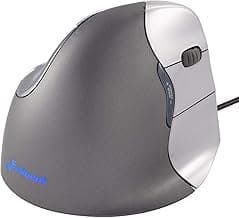
Why it is here: The Evoluent VM4 has the steepest angle (70 degrees) of any mainstream vertical mouse — providing the most aggressive pronation reduction available. For office workers with diagnosed carpal tunnel, tendinitis, or severe forearm pain, the extra angle matters. The VM4 also provides 6 programmable buttons — more than any competitor — useful for power users who want custom shortcuts.
The tradeoff: steeper learning curve (2–3 weeks versus 1–2 for 57° mice), wired or dongle-only connectivity (no Bluetooth), and a higher price (~$100). For carpal tunnel details, see our best vertical mouse for carpal tunnel (/best-vertical-mouse-carpal-tunnel) guide.
Pros:
70° angle — most aggressive pronation reduction available
6 programmable buttons — most on any vertical mouse
Left-hand version available — Evoluent VM4L
Wired version eliminates battery/connectivity concerns
Thumb rest — additional comfort for long sessions
Pointer-finger scroll wheel position — natural index finger access
Evoluent Mouse Manager software — full button customization
Cons:
~$100 — premium pricing
No Bluetooth — wired or 2.4 GHz dongle only
Steeper learning curve — 2–3 weeks
Bulkier than competitors — less portable
Standard optical sensor — no glass tracking
Click volume is audible
Proprietary software (Evoluent Mouse Manager) — may require IT installation approval
Search for Evoluent VerticalMouse 4 on Amazon (https://www.amazon.com/s?k=Evoluent+VerticalMouse+4)&tag=theforge05-20
Best for: Office workers with diagnosed wrist conditions who need maximum pronation relief and are willing to trade convenience features for the steepest ergonomic angle.
5. iClever TM209G — Best Ultra-Budget Bluetooth
Why it suits offices: The iClever TM209G provides Bluetooth connectivity and quiet clicks at ~$20 — the cheapest combination of these two office-critical features. For workers in strict IT environments where USB dongles are prohibited, or in ultra-quiet offices where click noise matters, the iClever delivers the basics at the lowest possible price.
At 98g, it is the lightest mouse on this list — comfortable for all-day use but lacks the planted, stable feel of heavier models. The 65mm grip width makes it suitable for medium-to-small hands. For detailed sizing, see our best vertical mouse for small hands (/best-vertical-mouse-small-hands-womens) guide.
Pros:
~$20 — cheapest Bluetooth vertical mouse
Bluetooth + 2.4 GHz — dual connectivity
Quiet clicks — open-office friendly
98g — lightest on this list (all-day comfort)
USB-C rechargeable
2-device pairing
Compact — travels well in laptop bags
Cons:
65mm grip — may be small for larger hands
Standard optical sensor — no glass tracking
2400 DPI max — adequate but not adjustable on-the-fly
Build quality is budget — lighter plastic
2 devices (not 3)
No software customization
Bluetooth wake-from-sleep can lag 1–2 seconds
Search for iClever TM209G Vertical Mouse on Amazon (https://www.amazon.com/s?k=iClever+TM209G+Vertical+Mouse)&tag=theforge05-20
Best for: Office workers on the tightest budget who need Bluetooth and quiet clicks. Ideal for small-to-medium hands in open-plan offices with strict IT policies.
Office-Specific Considerations
Multi-Monitor Navigation
Office workers with dual or triple monitors need to sweep the cursor across 4,000–8,000+ horizontal pixels. Vertical mice handle this well — large arm movements are natural in the handshake position. Two tips:
Tip How to Implement
Raise DPI for multi-monitor Set 1600–4000 DPI so a small wrist movement covers full screen width
Use cursor acceleration Windows: default is fine. macOS: use LinearMouse (free) to tune acceleration curve
Spreadsheet Work
Task Vertical Mouse Handling
Cell selection (click) Identical to regular mouse
Range selection (click-drag) Slightly different feel; fully natural after 1 week
Horizontal scrolling MX Vertical has horizontal wheel; others use Shift+scroll
Right-click context menus Identical to regular mouse
Double-click to edit cells Identical; no precision difference
Presentations
Presenting in a conference room with a different computer is where multi-device pairing earns its value. The MX Vertical and ProtoArc EM01 pair with 3 devices — switch to the meeting room computer with a button press, present, switch back to your desk.
IT Compatibility and Corporate Environments
Connectivity and IT Policy
Connectivity IT Risk Level Recommendation
Bluetooth ✅ Low Preferred — no USB device insertion; standard HID protocol
2.4 GHz dongle ⚠️ Moderate Acceptable in most environments; may trigger USB device policies
Wired USB ✅ Low No wireless concerns; always works; cable clutter
Software Installation
Mouse Software Required? IT Impact
MX Vertical Optional (Logi Options+) Well-known enterprise software; most IT departments approve
Anker None Zero IT footprint — true plug-and-play
ProtoArc EM01 Optional (basic) Minimal IT concern
Evoluent VM4 Optional (Evoluent Mouse Manager) Less common; may need IT approval
iClever TM209G None Zero IT footprint
Ergonomic Accommodation Request
If your company provides equipment, frame the vertical mouse as an ergonomic accommodation:
Mention wrist discomfort from prolonged mouse use
Reference OSHA workstation ergonomics guidelines
Request approval for a specific model (include the Amazon link)
Note that vertical mice are standard HID devices requiring no special software
Many companies have pre-approved ergonomic equipment lists — check with HR or facilities before purchasing with personal funds.
The Adjustment Period at Work
Week-by-Week Office Transition
Day What to Expect Productivity Impact Tips
1–2 Cursor feels imprecise; clicking takes conscious effort 20–30% slower on mouse tasks Keep old mouse in drawer; switch back for urgent deadlines
3–5 Basic navigation feels normal; drag-and-drop still awkward 10–15% slower Use for email and browsing; switch to old mouse for spreadsheet-heavy work
6–10 Most tasks feel natural; occasional fumbles on precise clicks 5% slower or equal Use exclusively; old mouse stays in drawer
11–14 Fully natural; old mouse feels wrong when you try it Equal or faster Adaptation complete; donate old mouse
Tasks That Adapt Fastest
Email and web browsing — Day 1–2 (clicking links, scrolling)
Document editing — Day 2–3 (cursor positioning, text selection)
Spreadsheet navigation — Day 3–5 (cell clicking, range selection)
Drag-and-drop — Day 5–7 (file management, presentation editing)
Precise UI elements — Day 7–10 (small buttons, dropdown menus)
For the full adjustment timeline, see our how long to adjust to a vertical mouse (/how-long-adjust-vertical-mouse) guide.
Ergonomic Desk Setup with a Vertical Mouse
Optimal Positioning
Element Correct Position Common Mistake
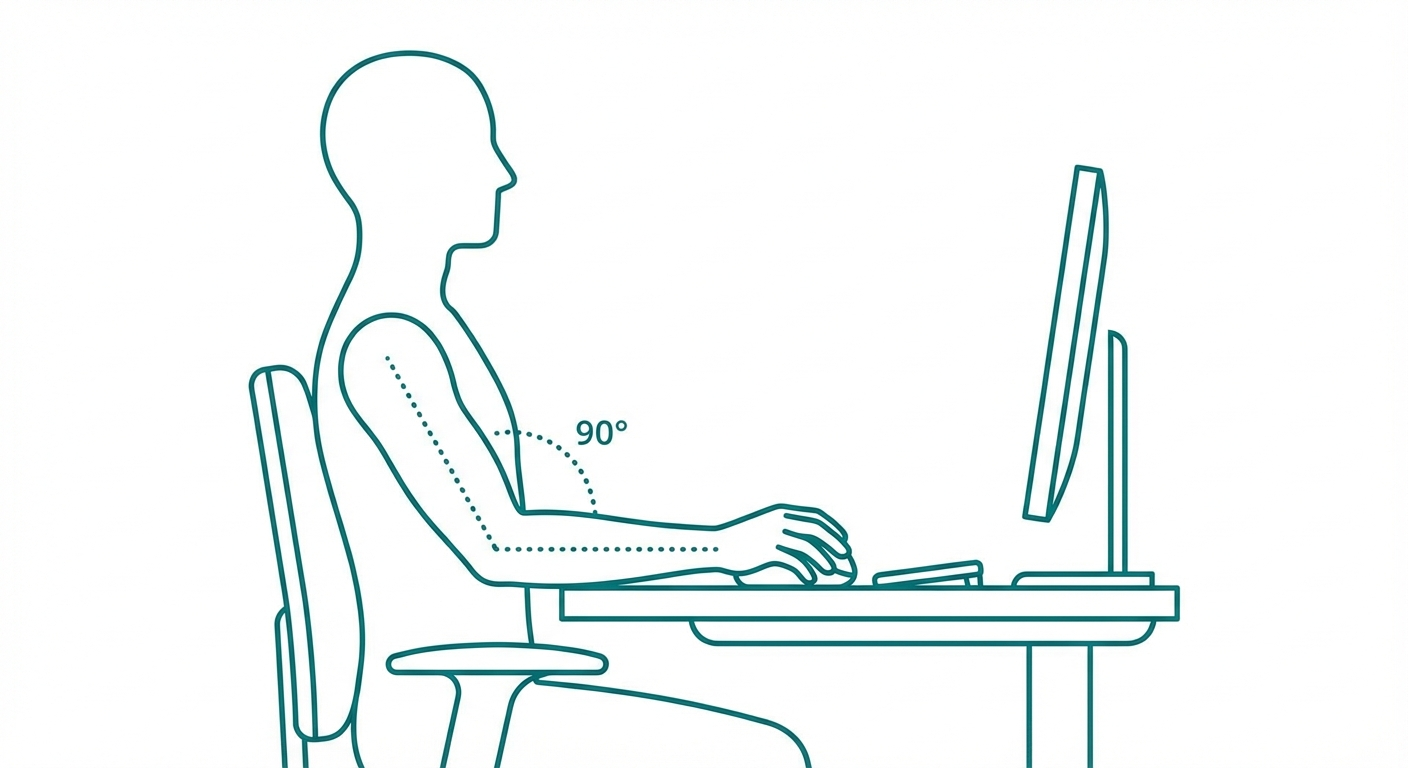
Mouse height Same level as keyboard; elbow at 90° Mouse on a higher or lower surface than keyboard
Mouse distance Within forearm's reach without extending shoulder Mouse too far — causes shoulder strain
Wrist angle Neutral (straight line from elbow to knuckles) Wrist angled up (mouse pad too thick) or down (desk too high)
Elbow position At side, relaxed; upper arm vertical Elbow splayed outward or shoulder raised
Chair armrest Supporting forearm at keyboard/mouse height Too high (shoulder shrug) or too low (no support)
Mouse Pad Considerations
Surface Mouse Pad Needed? Notes
Wood desk Optional Most vertical mice track fine on wood
Glass desk Yes (or Darkfield sensor) Standard optical sensors skip on glass; MX Vertical tracks without a pad
Laminate Optional Depends on surface texture
Metal Yes Most sensors struggle on brushed metal
Complementary Ergonomic Upgrades
Upgrade Benefit Price Range
Monitor arm Eye-level screen; reduces neck strain $25–80
Keyboard tray Correct typing height independent of desk $30–60
Wrist rest (keyboard) Palm support during typing pauses $10–20
Footrest Correct sitting posture if desk/chair height mismatched $20–40
For complete desk ergonomics with a walking pad, see our walking pad desk ergonomics (/walking-pad-desk-ergonomics) guide.
Noise in Open Offices
Click Volume Comparison
Mouse Click Volume Open Office Suitability
Logitech MX Vertical Quiet ✅ Excellent — soft, dampened clicks
iClever TM209G Quiet ✅ Excellent — minimal click noise
ProtoArc EM01 Standard ⚠️ Good — audible but not intrusive
Anker Vertical Standard ⚠️ Good — typical office mouse volume
Evoluent VM4 Standard ⚠️ Good — 6 buttons means more potential clicks
Scroll Wheel Noise
Scroll wheels are often louder than clicks in practice — rapid scrolling through long documents or web pages creates a sustained rattling sound. The MX Vertical's scroll wheel is the smoothest and quietest on this list. The Anker's is the loudest (stepped, mechanical feel).
Frequently Asked Questions
Is a vertical mouse good for office work?
Yes — it reduces pronation by 50–90% during the 4–8 hours of daily office mouse use. All common office tasks (email, spreadsheets, documents, browsing) work identically after a 1–2 week adjustment period.
How long to adjust at work?
5–10 business days for most office workers. Days 1–3 feel awkward. Days 4–7 feel mostly normal. Days 8–14 feel fully natural. Keep your old mouse nearby for the first week.
Will IT approve it?
Usually yes — vertical mice are standard USB/Bluetooth HID devices requiring no special drivers. Bluetooth models avoid USB device policies entirely. Frame it as an ergonomic accommodation if needed.
Do I need wireless?
Strongly recommended. Bluetooth is ideal for corporate environments (no USB dongle, no IT flags). The MX Vertical and ProtoArc EM01 both offer Bluetooth.
What about quiet clicks for open offices?
MX Vertical and iClever TM209G have the quietest clicks. Standard vertical mice (Anker, Evoluent) are comparable to regular office mice — audible but not disruptive.
Vertical mouse or ergonomic keyboard first?
Vertical mouse first — cheaper ($25–90 vs $150–350), shorter learning curve (1–2 weeks vs 2–6 weeks), and immediate pronation relief. Add an ergonomic keyboard later for comprehensive protection.
Works with docking stations?
Yes — all models. Bluetooth connects directly to the laptop. Dongles plug into any dock USB port. The MX Vertical switches between 3 devices for dock/undock workflows.
What size do I need?
Measure hand width across knuckles. Under 3": Anker or iClever. 3–3.5": MX Vertical. Over 3.5": Evoluent VM4. Correct size prevents cramping and finger strain.
Sources & Methodology
This guide evaluates vertical mice specifically for office environments, prioritizing workplace-relevant factors alongside ergonomic benefit.
Ergonomic References:
OSHA: Computer Workstation eTool — mouse positioning and ergonomic input devices — osha.gov (https://www.osha.gov/)
NIOSH: Ergonomics and Musculoskeletal Disorders — workplace ergonomic interventions — cdc.gov/niosh (https://www.cdc.gov/niosh/)
Research on forearm pronation reduction at varying mouse angles (57°, 70°, 90°)
Product References:
Mouse specifications from manufacturer product pages (Logitech, Anker, ProtoArc, Evoluent, iClever)
Pricing reflects typical US retail at publication
Methodology notes:
"Office suitability" assessed on: connectivity type (BT preferred), click volume, multi-device support, IT compatibility, battery life, glass tracking, and build durability for daily transport
Ergonomic ratings based on published angle measurements and pronation reduction research
Click volume assessments are relative comparisons; no standardized dB measurements available for most mice
Adjustment period estimates based on user experience reports; individual adaptation varies
This guide provides ergonomic product information, not medical advice. Consult a healthcare provider for diagnosed conditions
We may earn a commission on purchases at no additional cost to you; affiliate relationships do not influence recommendations
Internal links referenced:
Logitech MX Vertical Review (/logitech-mx-vertical-review)
Best Vertical Mouse Under $50 (/best-vertical-mouse-under-50)
Best Vertical Mouse for Carpal Tunnel (/best-vertical-mouse-carpal-tunnel)
Best Vertical Mouse for Small Hands (/best-vertical-mouse-small-hands-womens)
How Long to Adjust to a Vertical Mouse (/how-long-adjust-vertical-mouse)
Walking Pad Desk Ergonomics (/walking-pad-desk-ergonomics)
Key takeaway: pick the smallest mouse that still supports your palm, then prioritize low click force.
Top Picks Quick Comparison
Fast shortlist for decision-first readers. Full table remains below for complete detail.
| Product | Best For | Price | Rating |
|---|---|---|---|
| Logitech MX Vertical | Best office all-rounder | $$$ | 4.5/5 |
| Anker Ergonomic Vertical | Best office budget pick | $ | 4.3/5 |
| ProtoArc EM01 | Best budget wireless office option | $ | 4.2/5 |
| Evoluent VerticalMouse 4 | Best deep ergonomic office support | $$$ | 4.4/5 |
| iClever TM209G | Best ultra-budget quiet office option | $ | 4.1/5 |
Real Product Photos: All Reviewed Models
Each image below is a real product listing photo stored locally for faster loads and stable rendering.


Comparison Table: Best Vertical Mouse for Office Use (2026)
Key takeaway: comfort fit beats raw specs for long-term productivity.
| Product | Best For | Price Band | Rating | Link |
|---|---|---|---|---|
| Logitech MX Vertical | Best office all-rounder | $$$ | 4.5/5 | Check on Amazon |
| Anker Ergonomic Vertical | Best office budget pick | $ | 4.3/5 | Check on Amazon |
| ProtoArc EM01 | Best budget wireless office option | $ | 4.2/5 | Check on Amazon |
| Evoluent VerticalMouse 4 | Best deep ergonomic office support | $$$ | 4.4/5 | Check on Amazon |
| iClever TM209G | Best ultra-budget quiet office option | $ | 4.1/5 | Check on Amazon |
Note: Amazon links may be affiliate links and can generate commissions at no extra cost to you.