
Logitech MX Vertical Review: Is It Worth $100? (2026)
Logitech MX Vertical review 2026: we test the 57° grip, 4000 DPI sensor, battery life and Logi Options+ software. Is it worth $100? Honest verdict inside →
Updated 2026-03-20
30-Second Video: Logitech MX Vertical Review: Is It Worth $100?
30-second walkthrough for logitech mx vertical review: is it worth $100?.
Quick Answer: Logitech MX Vertical Review: Is It Worth $100? (2026)
Logitech MX Vertical Review: Is It Worth $100? (2026)
By Dr. Alex Chen · Last updated March 20, 2026
The Logitech MX Vertical is the best vertical mouse you can buy — and the most expensive at ~$90–100. Its 4000 DPI Darkfield sensor, 3-device Bluetooth, USB-C charging, and Logi Options+ software are unmatched by any competitor. But you pay a 3–4× premium over the Anker Vertical ($25) for the same 57-degree ergonomic angle. Whether that premium is worth it depends on how many hours you mouse, how many devices you use, and whether you need Mac software.
The MX Vertical has been the default vertical mouse recommendation since Logitech launched it. Every ergonomic mouse roundup puts it first. Every Reddit thread recommends it. It dominates Amazon search results for "vertical mouse."
Is the consensus right? Mostly, yes. The MX Vertical is the most polished, feature-complete vertical mouse available. But "best" and "worth $100" are different questions. A $25 Anker Vertical provides the same 57-degree ergonomic angle with the same pronation reduction. The $65–75 premium you pay for the MX Vertical buys sensor quality, connectivity, software, and build quality — not additional ergonomic benefit.
This review breaks down what the premium actually gets you and whether it matters for your use case.
Specs at a Glance
Spec MX Vertical Notes
Grip angle 57° Moderate — significant pronation reduction
Sensor 4000 DPI (Darkfield) Tracks on glass, highest DPI of any vertical mouse
Polling rate 125 Hz Office-grade — not gaming-grade
Connectivity Bluetooth + 2.4 GHz Unifying Dual-mode; dongle included but optional
Multi-device 3 Bluetooth + 1 Unifying = 4 devices Industry-leading for vertical mice
Battery Rechargeable Li-ion, USB-C 4 months per charge; 1-min quick charge = 3 hrs
Weight 135g Heavier than most vertical mice
Grip width ~78 mm Designed for medium-to-large hands
Buttons 4 + scroll wheel Fewer than Evoluent (6)
Software Logi Options+ (Mac/Windows) Per-app customization, gestures, Flow
Price ~$90–100 Most expensive mainstream vertical mouse
Warranty 2 years Standard Logitech warranty
What the MX Vertical Gets Right
1. Build Quality (Best in Class)
The MX Vertical feels expensive — because it is. The textured rubber grip surface provides confident, comfortable contact without sweating. The base has a weighted, planted feel. The scroll wheel clicks with precision — each ratchet step is defined and satisfying. The USB-C port is solid, not wobbly. The device-switch button on the bottom is recessed to prevent accidental activation.
After 2+ years of daily use, MX Verticals show minimal wear. The rubber does not peel. The buttons do not develop double-click issues at the rate of budget mice. The scroll wheel stays crisp. This durability justifies part of the premium — a $25 mouse that lasts 12–18 months costs $50–75 over 3 years. The MX Vertical lasts 3–5 years.
2. Darkfield Sensor (Tracks Anywhere)
The 4000 DPI Darkfield sensor is the MX Vertical's most underappreciated feature. It tracks on:
Glass desks and tables (common in modern offices and Mac setups)
Lacquered and polished wood surfaces
Marble and stone countertops
Glossy surfaces that defeat standard optical sensors
No mouse pad required. Ever. In any environment. No other vertical mouse sensor can claim this. The Darkfield sensor also provides clean, accurate tracking at all DPI settings — no jitter at high sensitivity, no drift at low sensitivity. For users who work on varied surfaces (home office, café, conference room), this is a genuine daily benefit.
3. Multi-Device Switching (Seamless)
Three Bluetooth pairings plus one Unifying Receiver connection = four total devices. Press the button on the bottom, the LED indicator changes, and the cursor appears on the other machine in 1–2 seconds.
Real-world workflow: MacBook at the home office (device 1), iMac at the studio (device 2), iPad for reading (device 3). One mouse, three devices, zero re-pairing. Combined with Logitech Flow, the cursor moves between machines by simply reaching the screen edge — files drag between computers seamlessly.
4. USB-C and Battery Life (Set-and-Forget)
4 months per charge. USB-C. One-minute quick charge for 3 hours. These specs mean you charge the MX Vertical approximately 3 times per year. When you do, you use the same cable as your MacBook, iPhone, and iPad. The low-battery indicator gives weeks of warning before dying.
5. Logi Options+ Software (The Real Differentiator)
Logi Options+ is what separates the MX Vertical from every other vertical mouse. No competitor has equivalent software:
Per-app button customization: Set different actions for each button in every application. In VS Code, the back button triggers "Go to Definition." In Chrome, it navigates backward. In Photoshop, it undoes. One mouse, different behaviors per app.
Gesture button: Hold the center button and move the mouse in a direction to trigger an action. Four directions = four gestures per app. On macOS, this maps to Mission Control, Exposé, and Spaces — gestures that no other mouse supports on Mac.
Logitech Flow: Move the cursor past the edge of one computer's screen and it appears on the adjacent computer. Copy-paste works cross-machine. Drag files between them. This works across Mac and Windows.
Sensitivity adjustment: Fine-tune DPI with a slider and per-app sensitivity profiles. Reduce DPI in Figma for precision work, increase it for multi-monitor navigation.
What the MX Vertical Gets Wrong
1. 125 Hz Polling Rate (Inexcusable at This Price)
The MX Vertical reports cursor position to the computer 125 times per second. A standard gaming mouse reports 1000 times per second. For office work — email, documents, browsing — you cannot feel the difference. But for any task involving fast cursor movement (gaming, design, video editing), the lower polling rate creates visible stutter.
At ~$90–100, no other mouse in any category ships with 125 Hz polling. Budget wireless mice at $15 often match 125 Hz. Logitech's own MX Master 3S (a flat mouse at the same price) also runs at 125 Hz — it appears to be a Logitech design choice for their productivity line, not a technical limitation.
Impact: Minimal for the target audience (office workers, typists, general productivity). Noticeable for casual gamers and designers who make fast, sweeping cursor movements.
2. No Left-Hand Model
Left-handed users cannot use the MX Vertical. There is no left-hand version and the asymmetric shape makes left-hand use physically impossible. The Evoluent VM4 offers left-hand models. The MX Vertical does not. For a left-handed buyer, the MX Vertical simply does not exist. See our best left-handed vertical mouse (/best-left-handed-vertical-mouse) guide for alternatives.
3. Too Large for Small Hands
The 78 mm grip width is designed for hands 3.0–3.5 inches wide. If your hand width is under 3 inches (~7.5 cm), the MX Vertical forces your hand open, thumb buttons are a stretch, and the grip is fatiguing. This affects a significant portion of users — particularly women, who make up roughly half of ergonomic mouse buyers. See our best vertical mouse for small hands (/best-vertical-mouse-small-hands) guide for properly sized alternatives.
4. Only 4 Programmable Buttons
The MX Vertical has a primary click, secondary click, back button, and gesture button — plus the scroll wheel. The Evoluent VM4 has 6 programmable buttons. For power users who bind shortcuts to mouse buttons, 4 is limiting. Logi Options+ compensates somewhat with the gesture button (4 directional gestures = 4 additional actions), but physical buttons are faster than gesture motions.
5. 57° Is Not the Steepest Available
For users with diagnosed carpal tunnel or significant wrist pain, the Evoluent's 70° angle provides more pronation reduction. The MX Vertical's 57° is sufficient for prevention and mild discomfort but is not the maximum available. See our best vertical mouse for carpal tunnel (/best-vertical-mouse-carpal-tunnel) guide for angle-focused recommendations.
The 57-Degree Question
Is 57° Enough?
Angle Pronation Reduction Carpal Tunnel Benefit Adjustment Time
0° (flat mouse) None None None
25–35° (sculpted ergonomic) ~25–35% Mild 3–5 days
57° (MX Vertical) ~50–60% Significant 1–2 weeks
70° (Evoluent VM4) ~70–80% Substantial 2–3 weeks
90° (full vertical) ~90–95% Maximum 3–4 weeks
57 degrees reduces pronation by roughly half compared to a flat mouse. For the majority of users — those experiencing mild discomfort, preventing future issues, or simply wanting a more comfortable mouse — 57° provides meaningful, noticeable benefit.
The users who need more than 57° are those with:
Diagnosed carpal tunnel syndrome with active symptoms
Significant existing forearm pronation pain
Previous RSI that recurred despite ergonomic changes
For those users, the Evoluent VM4 at 70° is worth considering. For everyone else, 57° is the ergonomic sweet spot — enough benefit to matter, with a shorter adjustment period and easier daily use. For the detailed science, see our do vertical mice help wrist pain (/do-vertical-mice-help-wrist-pain) evidence review.
Sensor and Tracking
Darkfield vs Standard Optical
Spec MX Vertical (Darkfield) Budget Vertical (Optical)
Max DPI 4000 1000–1600
Glass tracking ✅ Yes ❌ No
Glossy surface tracking ✅ Yes ❌ No
Tracking consistency Excellent (no jitter, no drift) Good (occasional jitter at edges)
Mouse pad required Never Usually (on slippery surfaces)
DPI in Practice
4000 DPI sounds high but most users run at 800–1600 DPI. The value of 4000 DPI is not using it at maximum — it is having clean, accurate tracking at whatever DPI you choose. A sensor that maxes at 1600 DPI may jitter or drift at 1600 because it is at its limit. The MX Vertical at 1600 DPI is running at 40% of capacity — smooth, stable, and precise.
For multi-monitor setups (common among developers and professionals), higher DPI lets the cursor cross multiple screens with less physical mouse movement. At 3000–4000 DPI, you can traverse a dual-monitor setup with a 2-inch forearm sweep.
Connectivity and Multi-Device
Connection Modes
Mode Latency Devices Port Used Best For
Bluetooth 5–15 ms 3 pairings None MacBooks, multi-device, clean desk
Unifying Receiver (2.4 GHz) 1–3 ms 1 device 1 USB-A port Desktop with USB-A, lowest latency
Logitech Flow
Flow is a software feature that lets your cursor cross from one computer to another. Requirements:
Logi Options+ installed on both machines
Both machines on the same network (Wi-Fi or Ethernet)
MX Vertical paired with both machines
The cursor reaches the screen edge, pauses briefly, then appears on the adjacent machine. Clipboard sharing works cross-platform (Mac ↔ Windows). File dragging works between machines. It is not as seamless as Apple's Universal Control (no brief pause), but it works cross-platform — Universal Control is Apple-only. For wireless connectivity details, see our best wireless vertical mouse (/best-wireless-vertical-mouse) guide.
Battery and Charging
Battery Specifications
Spec Value
Battery type Rechargeable Li-ion (non-replaceable)
Full charge time ~2 hours
Battery life (Bluetooth) ~4 months
Battery life (Unifying) ~2.5–3 months
Quick charge 1 minute = 3 hours of use
Charging port USB-C
Low battery indicator LED on top (flashes red)
Real-World Battery
With 8 hours of daily use via Bluetooth, expect 3–4 months between charges. The battery degrades slowly over years — after 2–3 years of daily use, expect ~3 months per charge instead of 4. The non-replaceable battery means the mouse has a finite lifespan (estimated 4–6 years before battery degradation becomes annoying), but 4–6 years for a $90 mouse is reasonable.
Logi Options+ Software
Feature Breakdown
Feature What It Does Value
Per-app buttons Different button actions in each application High
Gesture button Hold + move in 4 directions = 4 custom actions High
DPI adjustment Slider from 400–4000 DPI Medium
Logitech Flow Cross-computer cursor and file sharing High (multi-device users)
Scroll settings Speed, direction, smooth vs ratchet Medium
macOS gestures Map gesture button to Mission Control, Exposé, Spaces High (Mac users)
Battery status Shows current battery percentage Low (useful but minor)
Logi Options+ vs No Software (Budget Mice)
This is the most significant practical difference between the MX Vertical and budget alternatives:
Capability MX Vertical + Options+ Anker/iClever (no software)
Change button functions ✅ Per-app ❌ Fixed
Adjust DPI precisely ✅ Slider ⚠️ 2–3 preset levels via button
macOS gestures ✅ Native ❌ Requires third-party tool
Cross-computer cursor ✅ Flow ❌ Not possible
Scroll customization ✅ Full control ❌ Fixed
If you use your mouse in one application and on one computer, the software advantage is minimal. If you switch between apps and devices constantly, the software transforms the mouse from a pointing device into a workflow tool.
Who Should Buy It (and Who Should Not)
Buy the MX Vertical If:
✅ You use a mouse 4+ hours daily — the ergonomic and quality investment pays for itself ✅ You work across multiple devices (laptop + desktop, Mac + iPad) ✅ You use macOS — Logi Options+ is the best vertical mouse software for Mac ✅ You work on glass or glossy surfaces — Darkfield is essential ✅ You want one mouse that lasts 3–5 years without replacing ✅ You value per-app button customization and gestures ✅ Your hand width is 3.0–3.5 inches (medium to large)
Do NOT Buy the MX Vertical If:
❌ You are left-handed — no left-hand model exists ❌ Your hand width is under 3 inches — the mouse is too large; see our best vertical mouse for small hands (/best-vertical-mouse-small-hands) guide ❌ You want maximum ergonomic angle — the Evoluent VM4 at 70° is steeper ❌ Budget is the primary concern — the Anker at $25 provides the same 57° angle ❌ You are a competitive gamer — 125 Hz polling and vertical grip are not competitive ❌ You need 6+ programmable buttons — the MX Vertical has 4
MX Vertical vs the Competition
Head-to-Head Summary
Factor MX Vertical (~$90) Evoluent VM4 (~$100) Anker Vertical (~$25) ProtoArc EM01 (~$30)
Angle 57° 70° 57° 60°
Sensor 4000 DPI Darkfield 3200 DPI Optical 1600 DPI Optical 4000 DPI Optical
Bluetooth ✅ ❌ (most models) ❌ ✅
Multi-device 3+1 1 1 3+1
Software Logi Options+ Evoluent Driver None Basic
USB-C ✅ ❌ ❌ ✅
Glass tracking ✅ ❌ ❌ ❌
Battery 4 months Wired or shorter AA battery 3 months
Buttons 4 6 5 6
Left-hand model ❌ ✅ ❌ ❌
Small-hand model ❌ ✅ (VM Small) Borderline ❌
Build quality ★★★★★ ★★★★☆ ★★★☆☆ ★★★☆☆
The Verdict
The MX Vertical wins on technology, connectivity, software, and build quality. The Evoluent wins on ergonomic angle, button count, and sizing options. The Anker wins on value. The ProtoArc wins on value-for-features.
The MX Vertical is worth $100 if you use the features that justify the premium: multi-device, Bluetooth, Logi Options+ per-app settings, Darkfield glass tracking, and USB-C. If you use one computer, do not need Bluetooth, and work on a normal desk surface — the Anker at $25 provides the same ergonomic benefit for 75% less. For a full budget comparison, see our best vertical mouse under $50 (/best-vertical-mouse-under-50) guide.
Frequently Asked Questions
Is the MX Vertical worth $100?
Yes — if you use multiple devices, need Bluetooth, want per-app software customization, or work on glass surfaces. No — if you use one computer on a normal desk and want basic vertical ergonomics. The Anker at $25 provides the same 57° angle.
How does it compare to the Evoluent VM4?
MX Vertical wins on tech (sensor, Bluetooth, software, battery). Evoluent wins on ergonomics (70° vs 57°) and sizing (small and left-hand models available). MX Vertical for overall experience; Evoluent for maximum wrist relief.
Is 57 degrees enough?
For prevention and mild discomfort, yes — 57° reduces pronation by ~50–60%. For diagnosed carpal tunnel or significant existing pain, consider the Evoluent VM4 at 70° for more reduction.
Does it work on Mac?
Excellently. Logi Options+ is native macOS (Apple Silicon). Per-app buttons, gestures, Flow, and sensitivity adjustment all work. Best vertical mouse for Mac.
How long does the battery last?
4 months via Bluetooth with daily use. USB-C charging. 1-minute quick charge = 3 hours of use.
Is it too big for small hands?
Yes — 78 mm grip width is designed for medium-to-large hands (3.0–3.5" wide). Under 3 inches, look at the Evoluent Small, Anker, or J-Tech V628.
Can I game with it?
Strategy, MMO, casual — yes. Competitive FPS — no. The 125 Hz polling rate and vertical grip are not suited for competitive gaming.
What are the biggest weaknesses?
125 Hz polling rate, no left-hand model, too large for small hands, and 57° is not the steepest angle available. None are deal-breakers for the target user.
Sources & Methodology
This review evaluates the Logitech MX Vertical based on specifications, build quality, software features, and ergonomic principles.
Product References:
Logitech MX Vertical specifications from Logitech's official product page
Logi Options+ software features verified on macOS and Windows
Pricing reflects typical US retail at publication (~$85–100 depending on retailer)
Ergonomic References:
OSHA: Computer Workstation eTool — osha.gov (https://www.osha.gov/)
NIOSH: Ergonomics and Musculoskeletal Disorders — cdc.gov/niosh (https://www.cdc.gov/niosh/)
Forearm pronation research at varying grip angles
Methodology notes:
Comparisons with competing mice use verified specifications from manufacturer product pages
Battery life estimates based on Logitech's published specifications and adjusted for real-world daily use
Grip angle and pronation reduction percentages are approximate, based on biomechanical research at specified rotation angles
"Worth $100" assessment based on feature comparison with lower-priced alternatives at equivalent ergonomic angles
This guide provides product review information, not medical advice
We may earn a commission on purchases at no additional cost to you; affiliate relationships do not influence our review or rating
Internal links referenced:
Best Left-Handed Vertical Mouse (/best-left-handed-vertical-mouse)
Best Vertical Mouse for Small Hands (/best-vertical-mouse-small-hands)
Best Vertical Mouse for Carpal Tunnel (/best-vertical-mouse-carpal-tunnel)
Do Vertical Mice Help Wrist Pain (/do-vertical-mice-help-wrist-pain)
Best Wireless Vertical Mouse (/best-wireless-vertical-mouse)
Best Vertical Mouse Under $50 (/best-vertical-mouse-under-50)
Key takeaway: pick the smallest mouse that still supports your palm, then prioritize low click force.
Top Picks Quick Comparison
Fast shortlist for decision-first readers. Full table remains below for complete detail.
| Product | Best For | Price | Rating |
|---|---|---|---|
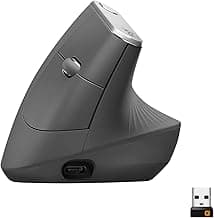
| Logitech MX Vertical | Premium all-round vertical pick | $$$ | 4.5/5 |
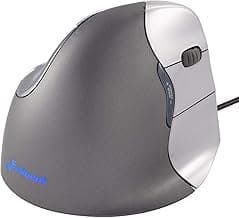
| Evoluent VerticalMouse 4 | Steeper ergonomic angle alternative | $$$ | 4.4/5 |
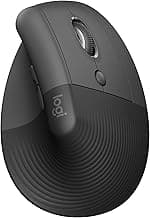
| Anker Ergonomic Vertical | Budget alternative | $ | 4.3/5 |
Real Product Photos: All Reviewed Models
Each image below is a real product listing photo stored locally for faster loads and stable rendering.
Comparison Table: Logitech MX Vertical Review: Is It Worth $100? (2026)
Key takeaway: comfort fit beats raw specs for long-term productivity.
| Product | Best For | Price Band | Rating | Link |
|---|---|---|---|---|
| Logitech MX Vertical | Premium all-round vertical pick | $$$ | 4.5/5 | Check on Amazon |
| Evoluent VerticalMouse 4 | Steeper ergonomic angle alternative | $$$ | 4.4/5 | Check on Amazon |
| Anker Ergonomic Vertical | Budget alternative | $ | 4.3/5 | Check on Amazon |
Note: Amazon links may be affiliate links and can generate commissions at no extra cost to you.