Guide
Vertical Mouse vs Trackball for Programmers (2026)
By Dr. Alex Chen · Updated 2026-03-18
By Dr. Alex Chen · Last updated March 18, 2026
For programmers who mouse frequently (IDE navigation, debugging, GUI tools), a vertical mouse wins — it reduces forearm pronation during the constant keyboard-mouse switching that coding demands. For keyboard-centric developers (Vim, terminal, minimal GUI), a trackball wins — zero wrist movement, zero desk space, and the cursor stays where you left it. Most devs benefit from matching device to workflow, not picking a universal winner.

Programmers are a specific kind of mouse user. We type far more than we click. We switch between keyboard and mouse hundreds of times per day. We work in applications (IDEs, terminals, browsers) that have extensive keyboard shortcuts specifically designed to minimize mouse use — yet we still reach for the mouse constantly.
This pattern — intense keyboard work interrupted by brief mouse bursts — creates a unique RSI profile. The repetitive strain is not from sustained mousing (like a graphic designer) or sustained typing (like a data entry clerk). It is from the transition itself: the reach, the grip, the click, the reach back.
Both vertical mice and trackballs address this problem, but through fundamentally different mechanisms. This comparison evaluates them specifically through a programmer's lens — not a generic "which is more ergonomic" analysis.
The Head-to-Head: 10 Factors That Matter for Coding
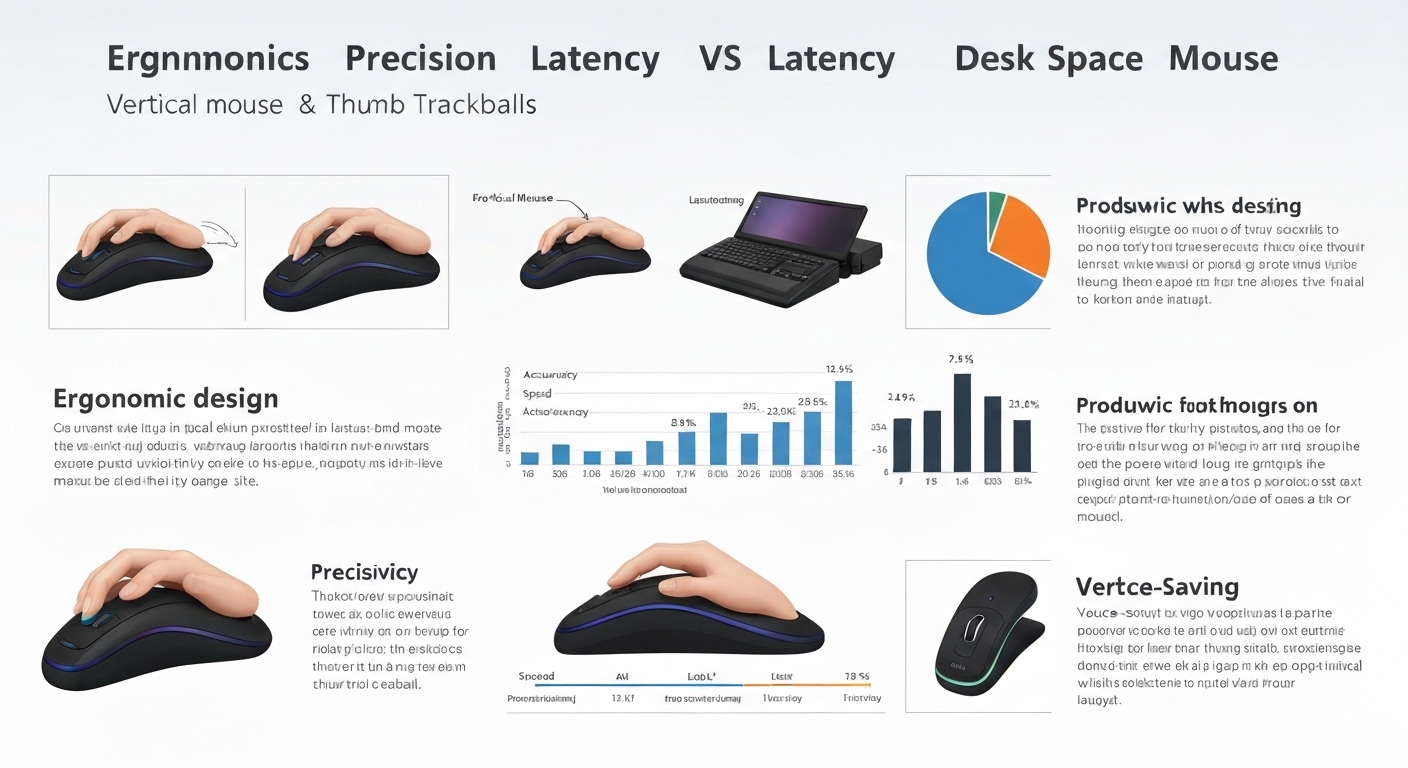
| Factor | Vertical Mouse | Trackball | Winner for Programmers |
|---|---|---|---|
| Forearm pronation | ✅ Reduced 50–90% | ❌ Most are palm-down | Vertical mouse |
| Wrist movement | ⚠️ Forearm pivots (less than flat mouse) | ✅ Zero wrist movement | Trackball |
| Desk space needed | 6–8" lateral area | Device footprint only (~5") | Trackball |
| Keyboard proximity | Mouse sits beside keyboard | Can sit anywhere, even below desk | Trackball |
| IDE precision (clicking code lines) | ✅ Good — natural pointing | ✅ Good — thumb/finger precision | Tie |
| Text selection (click-drag) | ✅ Natural — drag with arm movement | ⚠️ Requires ball + button coordination | Vertical mouse |
| Multi-monitor navigation | ✅ Good — large movements natural | ⚠️ Requires multiple ball spins | Vertical mouse |
| Learning curve | 1–2 weeks | 2–4 weeks | Vertical mouse |
| Multi-device switching | ✅ BT models switch easily | ✅ BT models switch easily | Tie |
| Fatigue over 8+ hours | Low (if correct size) | Very low (minimal muscle use) | Trackball |
RSI Prevention: The Developer-Specific Risks
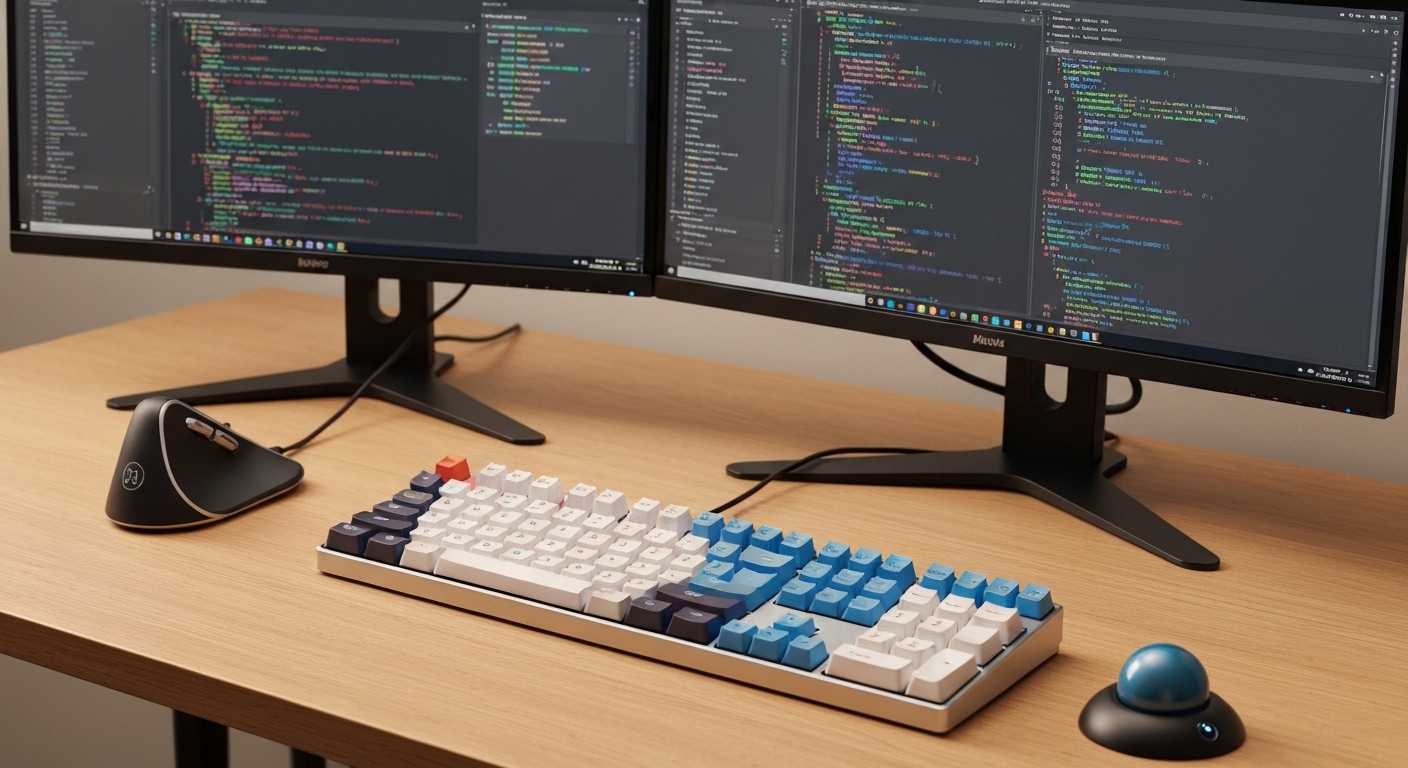

The Programmer's RSI Profile
Programmers face a specific combination of RSI risk factors that differ from other office workers:
| Risk Factor | Why It Affects Programmers Specifically |
|---|---|
| Mouse-keyboard switching | 200–500+ transitions per day between keyboard and pointing device |
| Sustained static posture | 4–8 hour sessions with intense focus, forgetting to move |
| Asymmetric arm use | Left hand on keyboard home row, right hand reaches for mouse — unbalanced load |
| High cognitive load | Debugging and problem-solving create tension that unconsciously transfers to grip force |
| Deadline pressure | Crunch periods increase hours and decrease ergonomic awareness |
| Gaming crossover | Many programmers game after work, adding mouse hours to already-heavy workdays |
How Each Device Addresses These Risks
Vertical Mouse:
- Reduces pronation during mousing phases (the wrist position risk)
- Does NOT reduce the reaching motion between keyboard and mouse (the transition risk)
- Does NOT reduce total movement — forearm still pivots to move cursor
- Benefit is primarily during mousing, not during transitions
Trackball:
- Eliminates wrist movement during mousing (the repetitive motion risk)
- CAN reduce reaching if positioned closer to keyboard (stationary — no movement space needed)
- Does NOT reduce pronation (most trackballs are palm-down)
- Benefit is primarily in reducing movement volume and reaching distance
The Insight
Neither device solves all programmer-specific RSI risks. The vertical mouse fixes wrist position. The trackball fixes wrist movement. The reaching problem — moving the hand from keyboard to pointing device and back — is best addressed by keyboard proximity (see below) and keyboard-driven workflows (see IDE section).
IDE and Editor Workflows
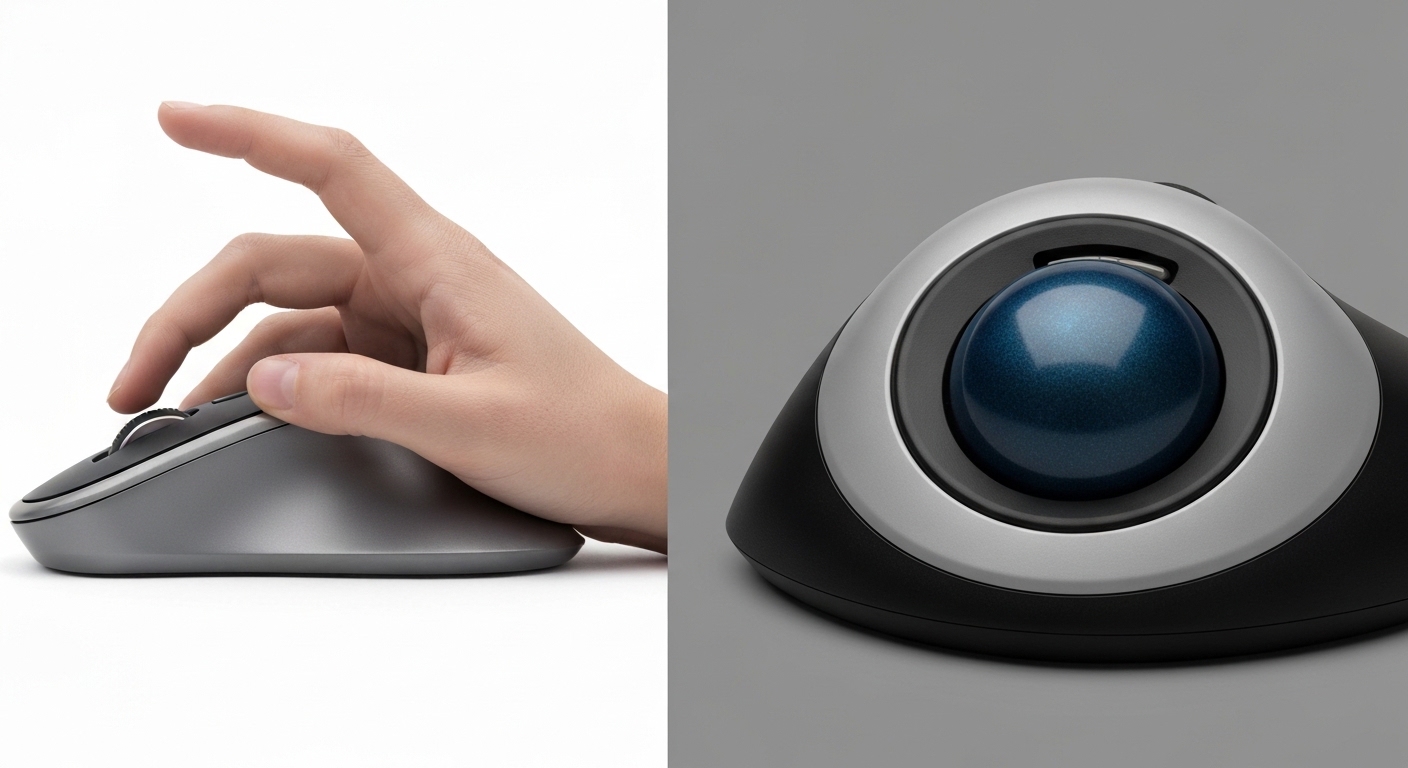
Mouse-Heavy IDE Workflow (VS Code, IntelliJ, Xcode)
If your coding style involves:
- Clicking on file trees to navigate projects
- Clicking in code to set breakpoints
- Using GUI debugging controls (step over, step into, continue)
- Clicking tabs to switch between files
- Using integrated terminal by clicking
- Dragging to select code for refactoring
- Hovering for IntelliSense/autocomplete previews
Best device: Vertical mouse. These tasks involve frequent clicking on specific targets, some dragging, and natural pointing motions. A vertical mouse handles them with the same fluency as a regular mouse but with better wrist position. A trackball handles clicking well but dragging and multi-target sequences feel less natural until you have significant trackball experience.
Keyboard-Heavy Terminal Workflow (Vim/Neovim, tmux, CLI)
If your coding style involves:
- Navigating code with keyboard commands (hjkl, ctrl-d, /)
- Switching between panes/windows with keyboard shortcuts
- Using the mouse only occasionally for scrolling or link clicking
- Terminal multiplexer navigation (tmux, screen)
- Git operations via CLI
- Minimal GUI interaction
Best device: Trackball. When the mouse is secondary to your workflow, the trackball's advantages shine: zero desk space consumed, no reaching arc needed (position it right next to the keyboard), and it stays where you left it between infrequent uses. A vertical mouse works fine here too, but you are paying for ergonomic benefits during mousing that you rarely do.
Mixed Workflow (Browser + Editor + Terminal)
Most programmers live in a mixed workflow: VS Code or similar IDE, browser with dev tools open, terminal for builds and git, Slack or Teams for communication. The pointing device switches between apps constantly.
Best device: Either works. Consider the dual-device strategy (see below).
Developer Tool Precision Requirements
| Task | Precision Needed | Vertical Mouse | Trackball |
|---|---|---|---|
| Click a code line number | Low | ✅ Easy | ✅ Easy |
| Click a specific character in code | Medium | ✅ Easy | ✅ Easy |
| Select text by click-drag | Medium | ✅ Natural | ⚠️ Requires practice |
| Resize editor panels by dragging divider | High | ✅ Natural | ⚠️ Tricky |
| Place cursor in browser dev tools element picker | Medium | ✅ Easy | ✅ Easy |
| Hover for autocomplete/tooltip | Low | ✅ Easy | ✅ Easy |
| Navigate multi-monitor with 3+ screens | High (distance) | ✅ Large arm sweep | ⚠️ Multiple ball spins |
| Click small UI elements (18px buttons) | Medium–High | ✅ Easy | ✅ Easy after adaptation |
For most IDE tasks, both devices provide sufficient precision. The vertical mouse has a natural advantage in drag operations and multi-monitor navigation. The trackball has a natural advantage in small, quick clicks when positioned close to the keyboard.
Keyboard Proximity: The Reaching Problem

The Hidden RSI Factor
Every time you move your hand from the keyboard to the mouse, your right arm:
- Lifts from the keyboard
- Moves laterally 6–12 inches (depending on keyboard width)
- Lands on the pointing device
- Performs the mouse action
- Lifts from the pointing device
- Returns 6–12 inches to the keyboard
Do this 300 times a day and your shoulder, forearm, and wrist accumulate significant repetitive reaching strain. This reaching motion is often the primary cause of programmer shoulder and forearm pain — more than the mousing or typing itself.
How Keyboard Width Affects Reaching
| Keyboard Type | Width | Distance to Mouse/Trackball | Annual Reaches (300/day × 250 days) |
|---|---|---|---|
| Full-size (with numpad) | ~18" | 10–14" | ~75,000 reaches of 10–14" |
| Tenkeyless (TKL) | ~14" | 6–10" | ~75,000 reaches of 6–10" |
| 75% / 65% | ~12" | 4–8" | ~75,000 reaches of 4–8" |
| 40% / split ergonomic | ~10" | 2–6" | ~75,000 reaches of 2–6" |
Switching from a full-size to a tenkeyless keyboard reduces reaching distance by 4–6 inches per transition. Over 75,000 annual transitions, that is 25,000–37,500 fewer inches of reaching — roughly 4–6 fewer miles of arm travel per year.
How Each Device Interacts with Keyboard Proximity
Vertical mouse: Needs 6–8 inches of clear desk space for movement. It sits beside the keyboard and requires lateral arm movement to operate. The total reach = keyboard-to-mouse distance + mouse movement space.
Trackball: Needs only its footprint (~5 inches). It can sit:
- Immediately adjacent to the keyboard (minimal reach)
- Below the desk on a tray
- Between the halves of a split keyboard
- On the keyboard tray itself, beside the spacebar
The trackball's stationary nature means it can be positioned closer to the keyboard than a vertical mouse, reducing the reach distance that causes programmer-specific shoulder strain.
The Optimal Programming Layout
For programmers prioritizing RSI prevention:
- TKL or 65% keyboard — eliminates numpad, reduces reach distance by 4+ inches
- Pointing device immediately adjacent to right edge of keyboard — minimizes transition distance
- If vertical mouse: Use a compact mouse pad positioned tight against the keyboard
- If trackball: Position the device touching the keyboard's right edge
The Dual-Device Strategy
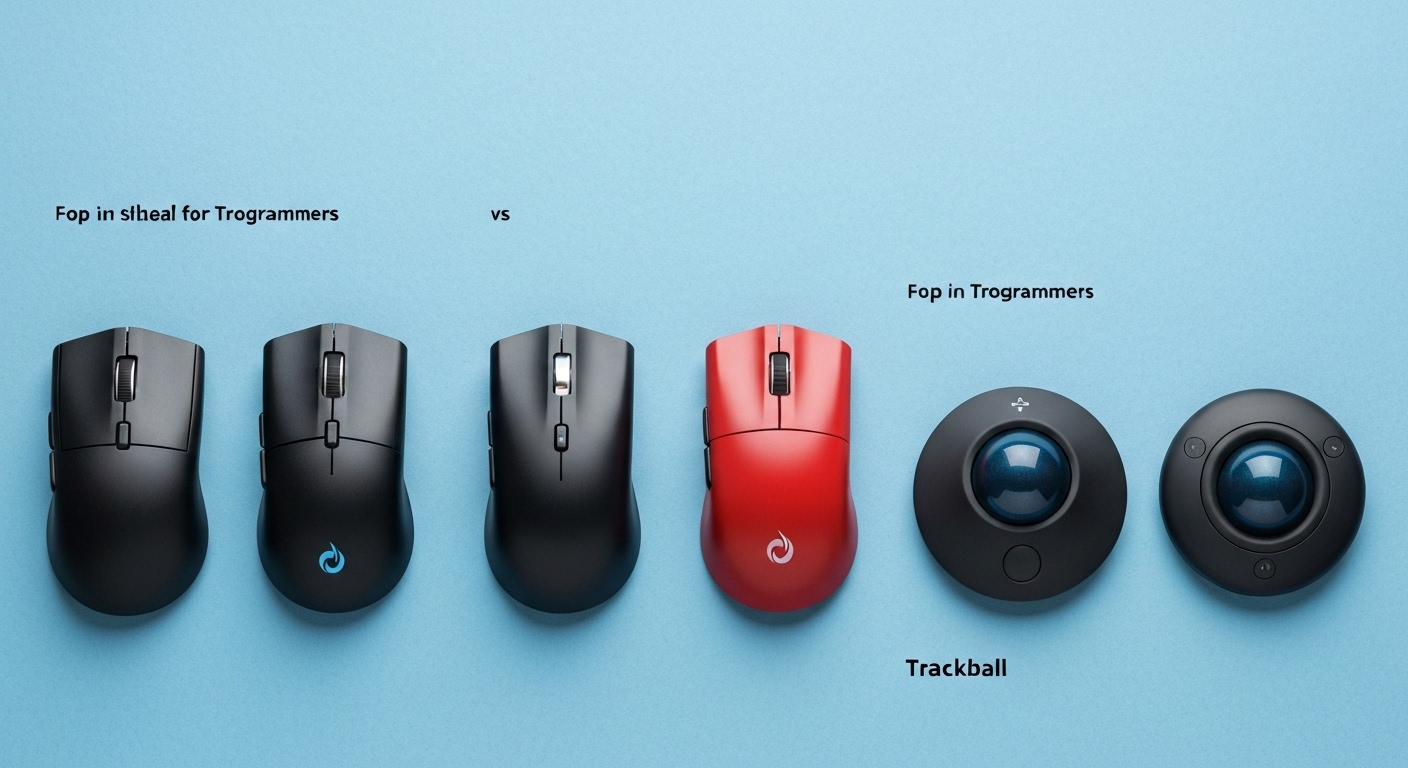
Why Programmers Should Consider Two Devices
The most effective RSI prevention is distributing repetitive motion across different muscle groups. A vertical mouse and trackball use fundamentally different muscles:
| Muscle Group | Vertical Mouse | Trackball (Thumb) |
|---|---|---|
| Forearm pronator/supinator | Active (forearm pivots) | Minimal |
| Wrist extensors/flexors | Minimal | Minimal |
| Shoulder deltoid | Active (lateral reaching) | Minimal (if positioned close) |
| Thumb muscles | Light (buttons) | Active (ball manipulation) |
| Finger extensors | Active (clicking) | Light (clicking) |
By alternating between devices, no single muscle group accumulates the repetitive load that causes RSI.
How to Implement Dual-Device
Setup: Vertical mouse on the right of the keyboard, trackball on the left (or between split keyboard halves).
Workflow split:
- Vertical mouse: GUI-heavy work — IDE debugging, browser, design tools, Slack
- Trackball: Navigation — terminal scrolling, tab switching, quick clicks between windows
- Switch whenever one hand starts to fatigue — the other device is immediately available
Cost: ~$115–125 total (MX Vertical ~$90 + Kensington Orbit ~$30) or ~$55 budget (Anker Vertical ~$25 + Kensington Orbit ~$30).
Best Vertical Mouse for Programmers
Top 3 Picks
| Mouse | Why It Suits Programmers | Multi-Device | DPI | Price |
|---|---|---|---|---|
| Logitech MX Vertical | Logi Options+ per-app bindings; BT multi-device; Logitech Flow for cross-machine cursor | 3 devices | 4000 | ~$90 |
| Anker Vertical | Budget — same ergonomic benefit; proven reliable | 1 device | 1600 | ~$25 |
| Evoluent VM4 | 6 buttons for macro binding; steepest angle (70°) for max RSI prevention | 1 device | 3200 | ~$100 |
Developer-Specific Features
Logitech MX Vertical + Logi Options+:
- Set different button bindings per application (VS Code gets different bindings than Chrome)
- Gesture button: hold and move mouse to trigger actions (hold + left = back, hold + right = forward)
- Logitech Flow: move cursor seamlessly between two computers — useful for multi-machine development setups
- Smart shift scroll wheel: free-spin for fast scrolling through long code files, ratchet for precise line-by-line
Evoluent VM4 + Driver Software:
- 6 buttons: bind to IDE shortcuts (run, debug, step over, step into, toggle terminal)
- Per-button DPI: lower DPI on thumb button for precision clicks, higher on main for navigation
- Macro support: multi-key combinations assigned to single button press
For a broader comparison including budget options, see our best vertical mouse under $50 guide. For wireless connectivity details, see our best wireless vertical mouse guide.
Best Trackball for Programmers
Top 3 Picks
| Trackball | Why It Suits Programmers | Ball Type | Multi-Device | Price |
|---|---|---|---|---|
| Logitech MX Ergo | Adjustable tilt (0/20°); BT multi-device; Logi Options+ per-app bindings | Thumb | 2 devices | ~$90 |
| Kensington Expert | Large ball for precise navigation; scroll ring; ambidextrous | Finger (center) | 1 device (BT model available) | ~$60 |
| Kensington Orbit | Budget — simple thumb trackball; compact; reliable | Thumb | 1 device | ~$30 |
Developer-Specific Features
Logitech MX Ergo:
- Adjustable 0° or 20° tilt angle — the 20° tilt provides some pronation reduction (not as much as a vertical mouse but better than flat)
- Multi-device Bluetooth switching — same as MX Vertical
- Logi Options+ per-app bindings work identically to MX Vertical
- The MX Ergo + MX Vertical is the ultimate Logitech dual-device developer setup: same software, same multi-device switching, same Flow support
Kensington Expert:
- Large finger-operated ball — the most precise trackball for pixel-level work
- Scroll ring around the ball — natural scrolling through code without a scroll wheel
- Customizable buttons with KensingtonWorks software
- Ambidextrous — usable by either hand (useful for the dual-device strategy)
For a detailed vertical mouse vs trackball analysis beyond programming, see our vertical mouse vs trackball comparison.

Decision Framework: Match Device to Workflow
Quick Decision Tree
Step 1: How often do you use the mouse while coding?
- Frequently (20+ times per hour) → Lean toward vertical mouse
- Occasionally (5–15 times per hour) → Either works — consider dual-device
- Rarely (under 5 times per hour) → Lean toward trackball
Step 2: What is your primary editor?
- VS Code, IntelliJ, Xcode (GUI IDE) → Vertical mouse or dual
- Vim, Neovim, Emacs (keyboard-driven) → Trackball or dual
- Mixed (IDE + terminal) → Dual-device recommended
Step 3: What is your desk space situation?
- Full desk with mouse pad space → Either works
- Tight desk or standing desk → Trackball (no movement space needed)
- Multi-monitor with wide cursor travel → Vertical mouse (easier for large movements)
Step 4: Do you have existing wrist pain?
- Pronation pain (forearm ache from palm-down) → Vertical mouse
- Movement pain (wrist ache from sliding mouse) → Trackball
- Both → Dual-device or explore vertical trackball
- No pain (preventive) → Either — choose based on workflow

Summary Table
| Programmer Profile | Recommended | Why |
|---|---|---|
| Full-stack dev, VS Code, frequent mousing | Vertical mouse | Pronation relief during frequent mouse use |
| Backend dev, Vim/terminal, minimal GUI | Trackball | Zero desk space, minimal reach, stays out of the way |
| DevOps/SRE, multi-monitor, mixed tools | Vertical mouse | Multi-monitor navigation, GUI + terminal mix |
| Mobile dev, Xcode/Android Studio, heavy debugging | Vertical mouse | Debugging UI is click-heavy; drag operations for UI layout |
| Data scientist, Jupyter + browser | Either | Moderate mouse use; comfort preference dominates |
| RSI-conscious, 8+ hour days | Dual-device | Maximum fatigue distribution across muscle groups |
| Standing/walking desk programmer | Trackball | Stationary — no desk vibration or space issues |

Frequently Asked Questions
Is a vertical mouse or trackball better for programmers?
Depends on workflow. Vertical mouse for GUI-heavy IDE work (VS Code, IntelliJ, debugging). Trackball for keyboard-centric terminal work (Vim, tmux, CLI). Both are effective RSI prevention — they address different risk factors.
Do programmers get RSI from mouse use?
Yes — high risk due to long hours, frequent mouse-keyboard switching (200–500+ transitions per day), and sustained static posture. The transition motion (reaching for the mouse and back) is often the primary strain source.
Which is more precise for IDE work?
Both handle IDE clicking, code navigation, and breakpoint placement equally well. Vertical mouse has an edge for drag operations (text selection, panel resizing). Trackball has an edge for small quick clicks when positioned close to the keyboard.
Can I use both together?
Yes — the dual-device strategy (vertical mouse + trackball) distributes strain across different muscle groups and is the most effective RSI prevention for heavy mouse users.
What is the best vertical mouse for programming?
Logitech MX Vertical — per-app button bindings via Logi Options+, 3-device Bluetooth, Logitech Flow cross-computer support, 4000 DPI. Anker Vertical at $25 for budget.
What is the best trackball for programming?
Logitech MX Ergo — adjustable tilt, per-app bindings, 2-device Bluetooth. Kensington Expert for finger-ball precision. Kensington Orbit for budget.
How much desk space does each need?
Vertical mouse: 6–8 inches of lateral movement space. Trackball: only its footprint (~5 inches). Trackball wins for tight desks and can be positioned closer to the keyboard.
Does keyboard layout matter?
Yes — a TKL or 65% keyboard reduces reach distance by 4+ inches per transition. With 300+ daily transitions, this significantly reduces shoulder and forearm strain regardless of which pointing device you choose.
Sources & Methodology
This guide compares vertical mice and trackballs specifically for programming workflows based on ergonomic principles, developer usage patterns, and RSI prevention.
Ergonomic References:
- OSHA: Computer Workstation eTool — input device ergonomics and repetitive motion risk — osha.gov
- NIOSH: Ergonomics and Musculoskeletal Disorders — cdc.gov/niosh
- Research on mouse-keyboard switching frequency and its relationship to upper extremity strain in office workers
Developer Workflow References:
- IDE usage patterns: mouse interaction frequency varies by editor type — GUI IDEs (VS Code, IntelliJ) require more mouse interaction than keyboard-driven editors (Vim, Emacs)
- Developer reaching frequency: estimated 200–500 mouse-keyboard transitions per day based on typical coding session patterns
Product References:
- Mouse and trackball specifications from manufacturer product pages (Logitech, Kensington, Evoluent, Anker)
- Pricing reflects typical US retail at publication
Methodology notes:
- "Better for programmers" assessments based on matching device capabilities to programming-specific usage patterns (keyboard proximity, IDE precision, drag operations, multi-monitor navigation)
- RSI risk factors specific to programming identified from occupational ergonomics literature on computer-intensive workers
- Desk space calculations based on standard keyboard dimensions and typical mouse movement ranges
- This guide provides ergonomic information, not medical advice. Consult a healthcare provider for existing RSI or wrist conditions
- We may earn a commission on purchases at no additional cost to you; affiliate relationships do not influence recommendations
Internal links referenced: