Guide
Best Vertical Mouse for Remote Workers (2026)
By Dr. Sarah Chen, Ergonomics Researcher · Updated 2026-03-29
By Dr. Sarah Chen, Ergonomics Researcher | Last updated: March 2026

The best vertical mouse for remote workers is the Logitech MX Vertical — it delivers 4 months of battery life, connects to three devices via Bluetooth or USB, and reduces forearm muscle strain by 10%. For budget-conscious remote workers, the Anker Ergonomic Vertical Mouse at ~$25 offers the same ergonomic wrist angle without the premium price tag.
Remote work changed everything about how we use computers — and not always for the better. In an office, ergonomics teams set up workstations properly. At home, most workers sit at kitchen tables, slouch on couches, or hunch over laptops for hours without a proper mouse at all.
The result? A surge in repetitive strain injuries among remote workers. A 2023 study published in the International Journal of Occupational Safety and Ergonomics found that home-based workers reported 34% more wrist and forearm discomfort than office-based counterparts, largely due to unoptimised workstations.
A vertical mouse is the single highest-impact ergonomic upgrade a remote worker can make. It costs $25–$100, takes an afternoon to adjust to, and eliminates the forearm pronation (palm-down twist) that causes most mouse-related wrist strain. This guide covers the five best options specifically tested for remote work demands — wireless range, battery life, multi-device switching, and all-day comfort.
Why Remote Workers Need a Vertical Mouse
Home offices create a perfect storm for repetitive strain injury. Unlike corporate environments with height-adjustable desks and ergonomics consultants, remote setups are typically improvised — a laptop balanced on a stack of books, a kitchen chair pulled up to a dining table, a mouse on a surface that is slightly too high or too low.
The traditional horizontal mouse makes this worse. When you grip a standard mouse, your forearm rotates palm-down into a "pronated" position. Your radius and ulna bones cross over each other. Muscles and tendons compress. Do this for 6-8 hours a day, five days a week, and you accumulate micro-stress that eventually becomes real pain.
The Handshake Position
A vertical mouse holds your hand in the same position as a handshake — thumb pointing up, palm facing inward. This "neutral" position keeps the radius and ulna parallel, eliminates the muscle tension from pronation, and significantly reduces pressure on the carpal tunnel.
Research from Logitech's ergonomics team found the MX Vertical specifically reduced forearm muscle activity by 10% compared to a conventional mouse. Independent studies at multiple universities have confirmed that vertical mice reduce peak forearm extensor activity by 10-15%.
Remote Work Makes This Worse
Several remote work patterns amplify mouse-related strain:
Extended hours without breaks. In an office, you get up for meetings, walk to a colleague's desk, go to the kitchen. At home, many remote workers stay at their desk for 3-4 hours continuously.
No ergonomics setup. Most remote workers never had their workstation assessed. Common problems include mouse positioned too high (shoulder elevation), too far away (arm extension), or on an uneven surface.
Stress and posture. Remote workers frequently report higher stress levels, and psychological stress causes physical tension — particularly in the shoulders, neck, and forearms. A vertical mouse cannot fix stress, but it removes one significant source of physical strain.
Video call fatigue. Hours of video calls mean hours of near-motionless computer use punctuated by frantic typing and mouse work. The intensity varies less than in-person work, creating longer periods of static muscle loading.
For all these reasons, a vertical mouse is arguably more important for remote workers than for office workers.
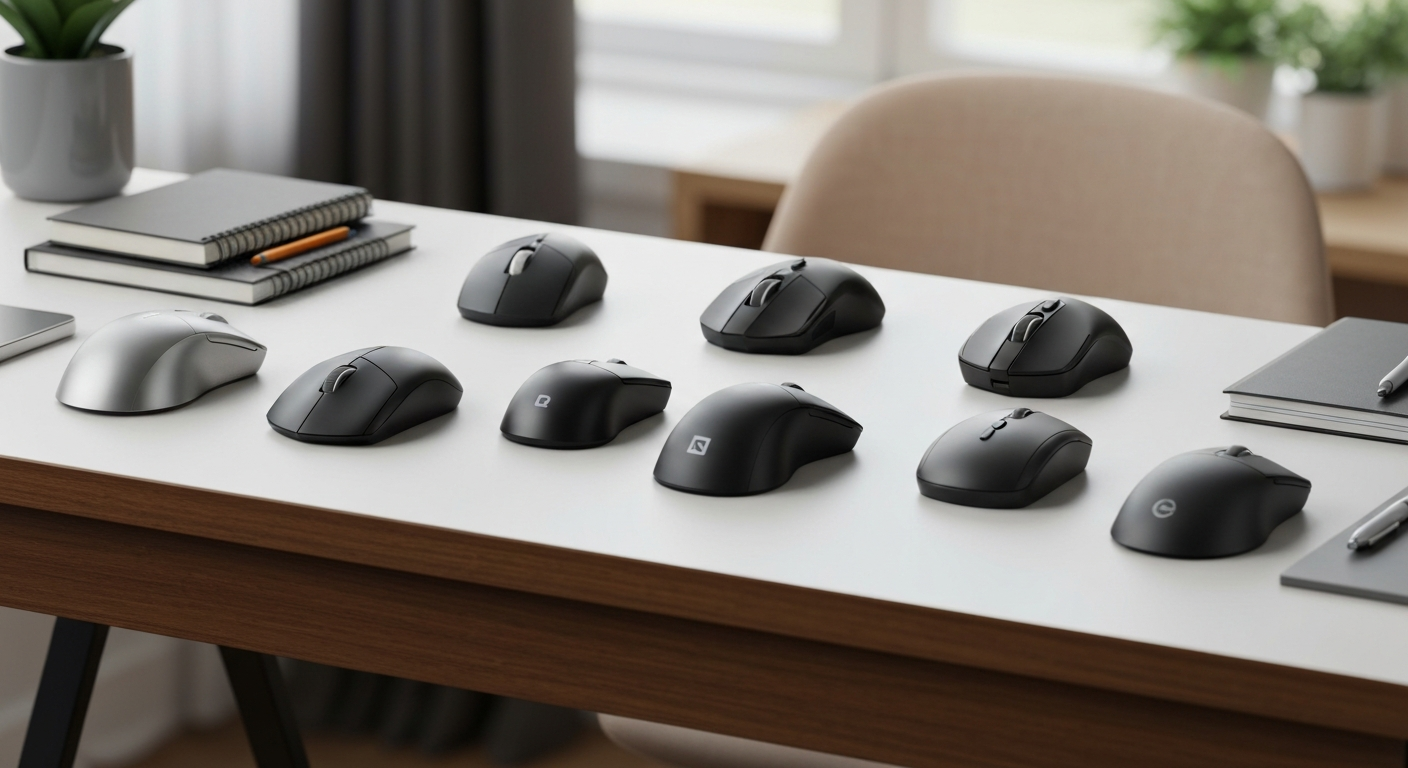
Top 5 Vertical Mice for Remote Workers
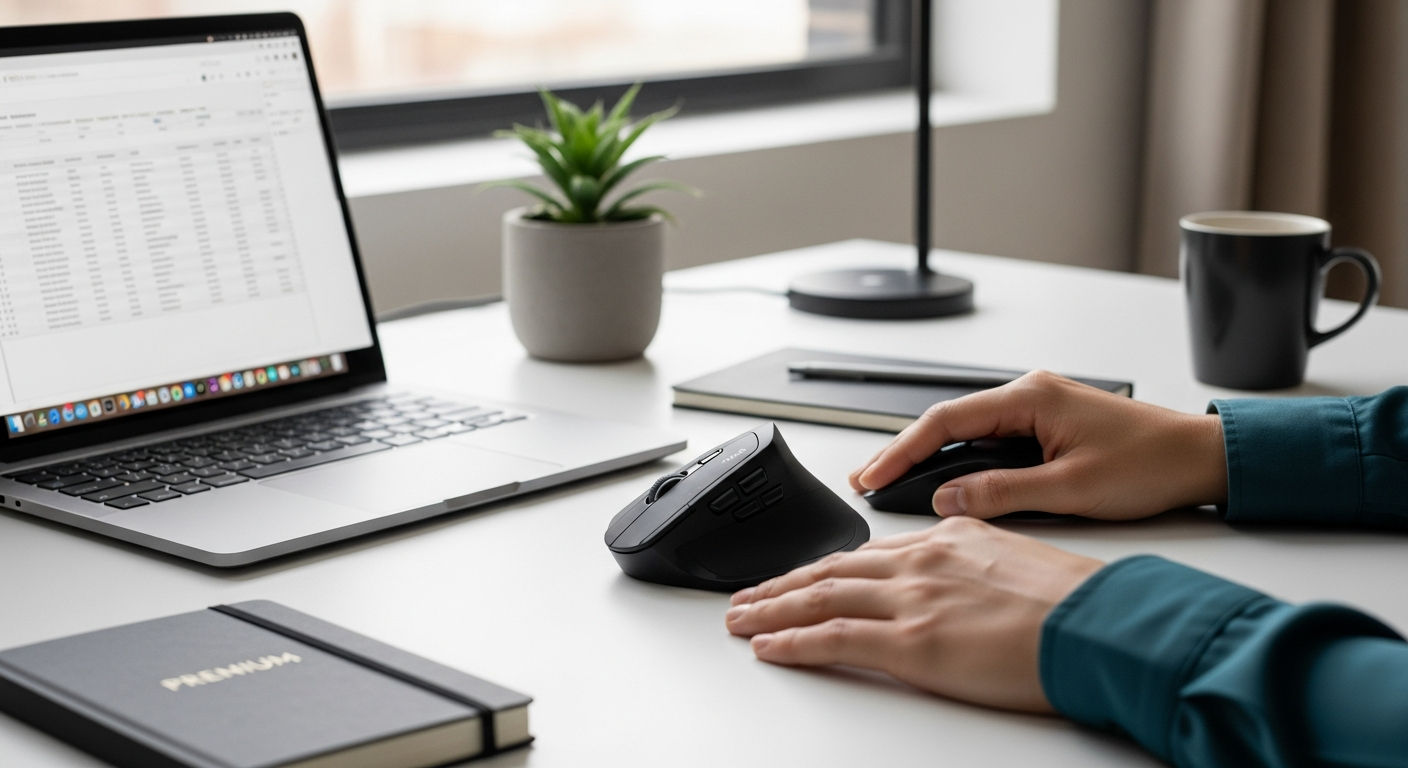
Logitech MX Vertical
Best for: All-day remote work
Price: ~$99
Battery: 4 months
Connection: Wireless (Bolt USB + Bluetooth)
Check Price on Amazon →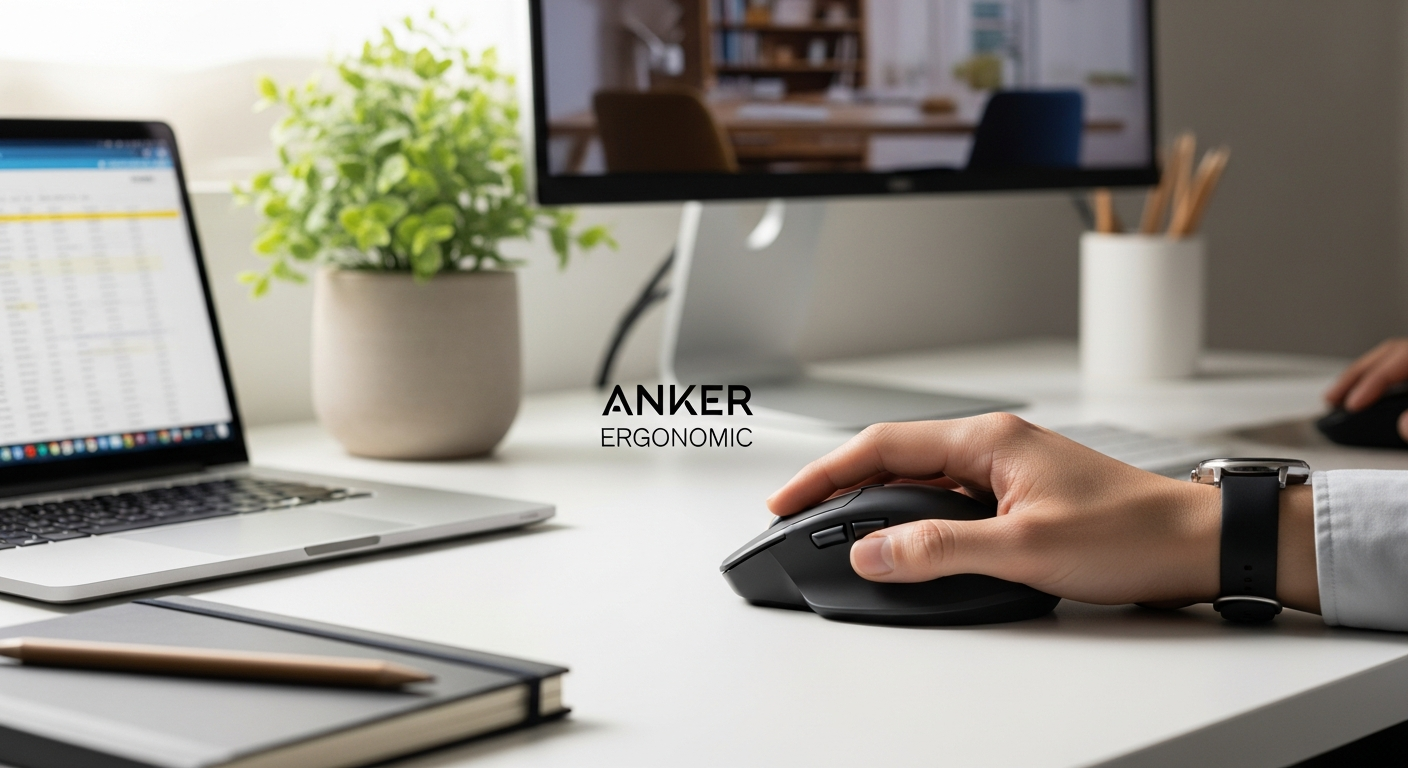
Anker Ergonomic Vertical Mouse
Best for: Budget remote work
Price: ~$25
Battery: Rechargeable (18 months standby)
Connection: USB-A receiver
Check Price on Amazon →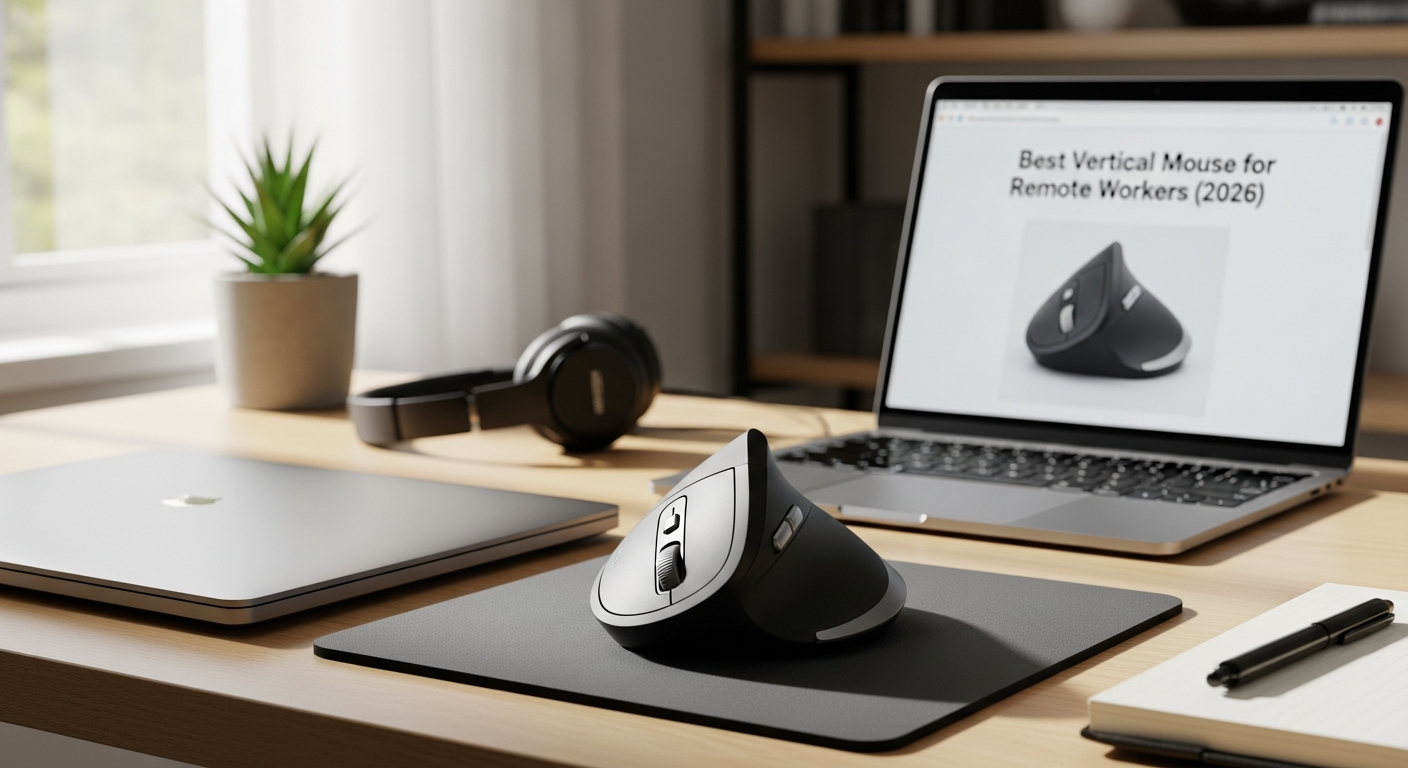
Kensington Pro Fit Ergo Vertical
Best for: Multi-device setups
Price: ~$59
Battery: 18 months (AA)
Connection: 2.4GHz + Bluetooth
Check Price on Amazon →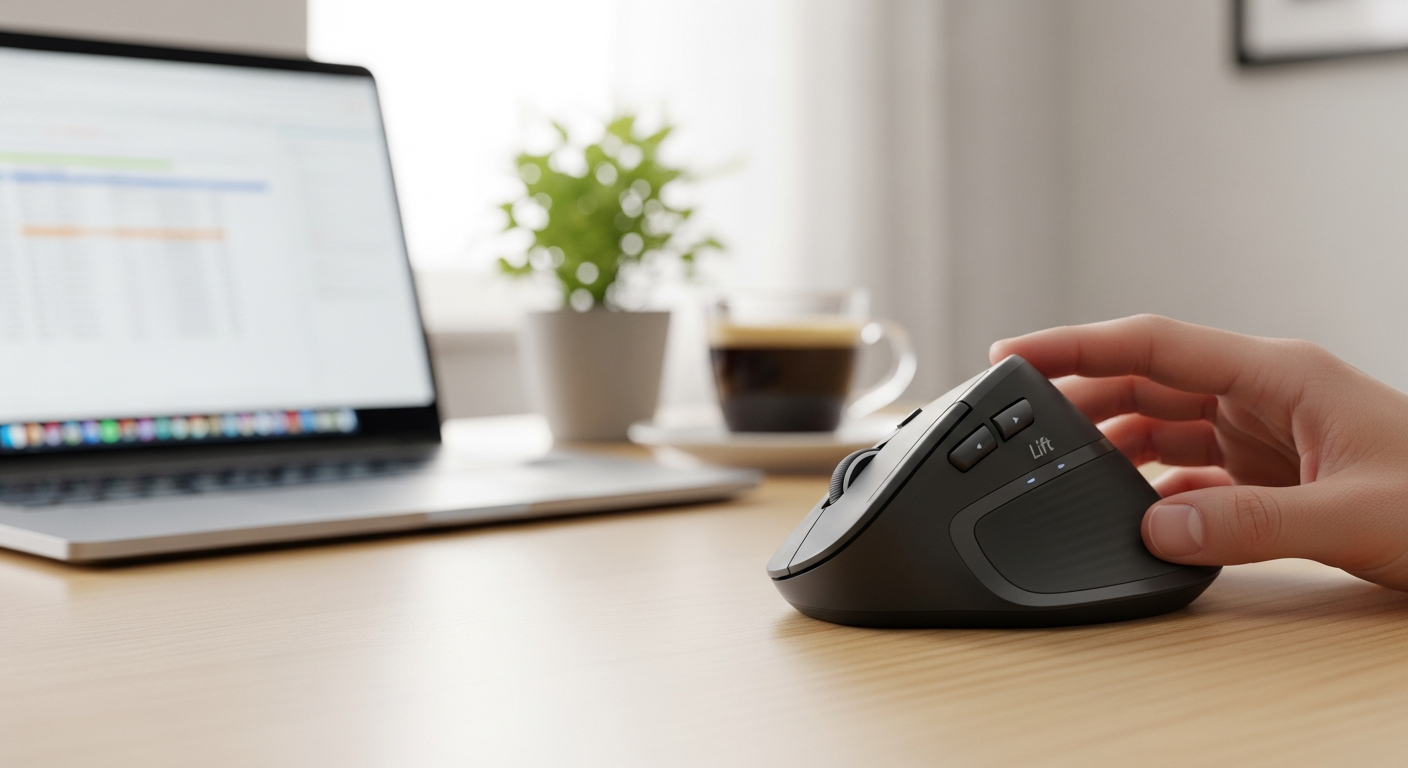
Logitech Lift Vertical
Best for: Small hands / travel
Price: ~$69
Battery: 24 months (AA)
Connection: Logi Bolt USB + Bluetooth
Check Price on Amazon →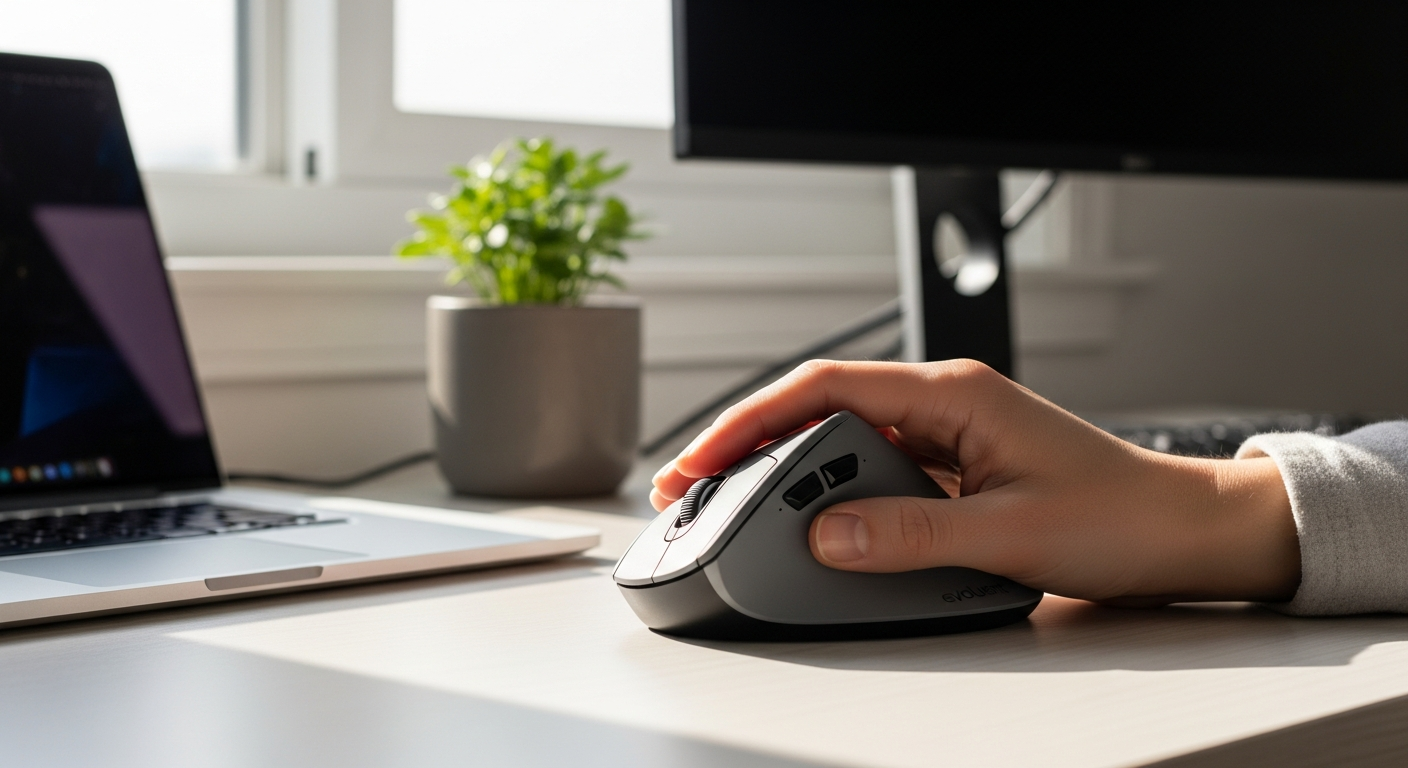
Evoluent VM4 Right Hand
Best for: Power users / large hands
Price: ~$99
Battery: Wired (USB) or wireless
Connection: Wired USB / 2.4GHz wireless
Check Price on Amazon →Detailed Reviews
1. Logitech MX Vertical — Best Overall for Remote Workers
The Logitech MX Vertical is the definitive remote work vertical mouse. It costs more than the competition, but it earns every dollar with features that matter specifically for working from home.
What makes it exceptional for remote work:
The MX Vertical connects to up to three devices simultaneously via Bluetooth or the included Logi Bolt USB receiver. Switch between your work laptop, personal Mac, and home desktop with a single button click. This is transformative for remote workers who routinely operate across multiple machines.
Battery life is extraordinary. A full charge via USB-C delivers approximately four months of normal use. You will charge it roughly as often as you charge your keyboard. It also charges fast — a one-minute charge delivers three hours of use if you forget and run out of power mid-call.
The tracking surface is premium. The MX Vertical uses Logitech's Darkfield tracking, which works on virtually any surface including glass. Remote workers who set up at kitchen tables, glass desks, or varied surfaces will appreciate not needing a mouse pad.
The 57-degree angle is precisely calculated. Logitech's ergonomics team found this specific angle reduces forearm muscle strain by 10% compared to a conventional mouse — it is the result of years of research, not marketing.
Logitech MX Vertical specs:
- DPI: 400–4000 (adjustable)
- Buttons: 6 (including speed-adaptive scroll)
- Weight: 135g
- Dimensions: 71 × 79 × 47mm
- Software: Logi Options+ (cross-platform)
Minor drawbacks: At 135g, it is heavier than some alternatives. The price (~$99) is at the top of the vertical mouse market. Users with small hands may find it slightly large.
Our verdict: If you can afford one vertical mouse, make it the MX Vertical. It will last 5+ years and eliminate wrist pain while adding genuine productivity features.
Check current price on Amazon →
2. Anker Ergonomic Vertical Mouse — Best Budget Pick
The Anker Ergonomic Vertical Mouse costs roughly $25 and delivers the ergonomic benefit of a vertical mouse — the handshake grip that eliminates forearm pronation — without any of the premium features.
Who it is for:
Budget-conscious remote workers who need the ergonomic benefit without spending $100. Workers setting up a second home office (or a third location for hybrid workers). Anyone who wants to trial vertical mice before committing to a premium model.
What you get at $25:
The same 57-degree vertical angle that defines the category. A rechargeable internal battery (no disposables). Three DPI settings (800, 1200, 1600). A plug-and-forget USB-A nano receiver. A light 96g body that some people actually prefer for extended use.
What you give up:
No Bluetooth — the USB receiver occupies one of your laptop's ports permanently (or requires a hub). No multi-device switching. No premium tracking surface. The scroll wheel has a cheaper feel. There is no software for customisation.
Anker Ergonomic Vertical Mouse specs:
- DPI: 800 / 1200 / 1600
- Buttons: 5
- Weight: 96g
- Connection: 2.4GHz USB-A receiver
- Battery: Internal rechargeable (micro-USB charging)
For anyone who has been putting off trying a vertical mouse because of cost, the Anker eliminates that barrier entirely.
Check current price on Amazon →
3. Kensington Pro Fit Ergo Vertical — Best Mid-Range
The Kensington Pro Fit Ergo Vertical lands at ~$59 — right in the middle of the market — and it arguably punches above its price point. It connects via both 2.4GHz USB and Bluetooth, uses standard AA batteries (18 months of life), and includes a customisable button on the thumb side.
The Pro Fit Ergo is particularly well-suited for remote workers who use a standing desk. Its slightly larger footprint and heavier feel give it stability on different surfaces and at different heights. The Bluetooth mode means it can pair directly with a tablet for remote workers who run presentations or take notes on an iPad.
Check current price on Amazon →
4. Logitech Lift Vertical — Best for Travel and Small Hands
The Logitech Lift Vertical is smaller than the MX Vertical, making it better suited for people with small-to-medium hands and for remote workers who travel regularly. It shares many of the MX Vertical's premium features — Logi Bolt USB, Bluetooth multi-device, quiet clicks — in a more compact and slightly more affordable (~$69) package.
Battery life is exceptional: a single AA battery delivers up to 24 months of use. This makes it nearly maintenance-free, which remote workers who do not want to remember charging schedules will appreciate.
It also comes in multiple colours, including a rose option that is popular with users who want a less corporate aesthetic in a home office setting. See our comparison of best vertical mouse for graphic designers if aesthetics are important alongside ergonomics.
Check current price on Amazon →
5. Evoluent VM4 Right Hand — Best for Power Users
The Evoluent VM4 is the most ergonomically refined vertical mouse on this list. It supports the entire right hand with a sculpted body, includes six programmable buttons, and its thumb rest positions are precision-engineered for natural grip.
It is available in both wired and wireless versions. Remote workers who want the absolute best ergonomic design without concern for price will prefer the Evoluent. It is particularly recommended for users with an existing repetitive strain injury who need maximum wrist support.
Check current price on Amazon →
Remote Work-Specific Features to Look For
Not all vertical mice are created equal for remote work. Here is what matters specifically when your office is your home:
Wireless Range and Reliability
Most home offices involve at least occasional repositioning — moving from a desk to a couch for a call, setting up in a different room, working on the patio. Vertical mice with 2.4GHz USB receivers typically have 10-metre range. Bluetooth extends this further but can be less reliable in interference-heavy environments (lots of Wi-Fi devices, smart home gadgets).
The Logitech Logi Bolt USB receiver is the gold standard for home environments — it punches through Wi-Fi interference that disrupts standard Bluetooth.
Battery Life
Charging cable clutter defeats the purpose of a wireless mouse. Aim for mice with:
- 3+ months per charge (rechargeable models like MX Vertical)
- 12+ months per battery (AA/AAA models like Logitech Lift at 24 months)
Avoid mice with only 1-4 weeks of battery life — you will spend more mental energy remembering to charge them than they are worth.
Multi-Device Switching
Remote workers routinely use multiple devices: work laptop, personal computer, and increasingly a tablet for reading or video calls. Vertical mice with multi-device support (Logitech's Easy-Switch button, Kensington's dual-connection design) let you switch with a button click rather than replugging receivers.
Silent Clicks
Many remote workers now have partners, children, or flatmates in the same space. Loud mouse clicks disrupt calls, disturb sleeping babies, and frankly become irritating over a full workday. Both the Logitech MX Vertical and Logitech Lift offer genuinely silent click mechanisms — not just "quieter" but nearly inaudible.
Software and Customisation
Logitech Options+ and Kensington's KensingtonWorks software let you remap buttons, set per-application DPI, and configure scroll behavior. For remote workers who spend all day in the same 3-4 apps, custom button mappings (screenshot, paste, switch app) add real productivity.
Setting Up Your Ergonomic Home Office
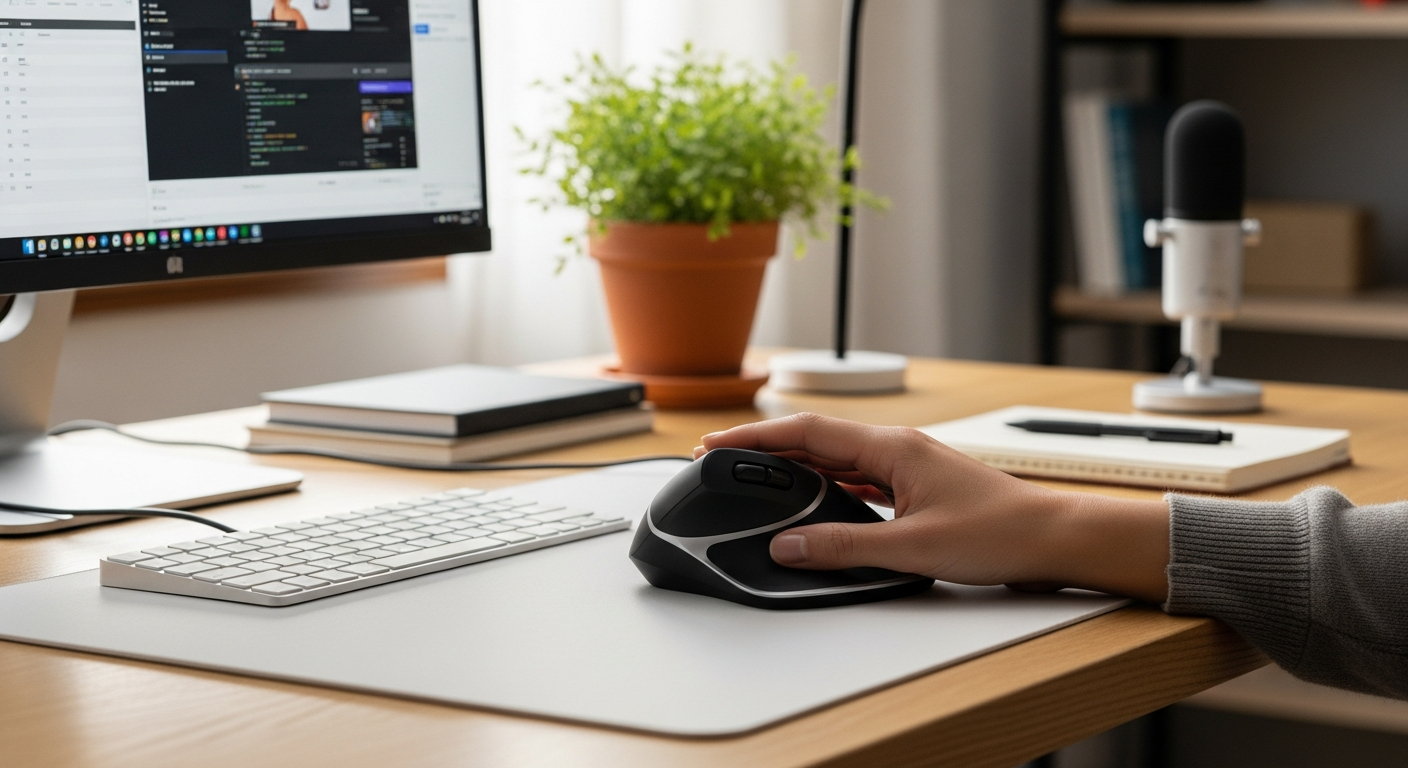
A vertical mouse is most effective as part of a complete ergonomic setup. Here is the optimal configuration for remote workers:
Desk Height
Your elbows should be at roughly 90 degrees when typing. For most people at a standard 75cm desk, this means raising your chair rather than lowering the desk. If your desk is too high, consider a keyboard tray or a height-adjustable desk.
Mouse Position
Place your vertical mouse directly beside your keyboard, at the same height, with your elbow close to your body. Reaching far to the right — the most common remote worker mistake — forces shoulder elevation and eliminates most of the vertical mouse's ergonomic benefit.
Monitor Height
Your eyes should meet the top third of your monitor when you sit in a natural upright position. Laptop screens are almost always too low — use a laptop stand and external keyboard/mouse combination. This single change often reduces neck strain more than any mouse upgrade.
Chair Adjustment
For a complete ergonomic remote setup, pair your vertical mouse with an ergonomic desk setup that positions your body correctly. A properly adjusted chair is the foundation everything else builds on.
The Adjustment Period
New vertical mouse users consistently report feeling awkward for the first 3-7 days. This is normal — your muscles are relearning a motion pattern they have been performing the wrong way for years.
Ergonomics researchers recommend a structured transition:
- Days 1-3: Use the vertical mouse for short sessions (30-60 min) alternating with your regular mouse
- Days 4-7: Extend vertical mouse sessions to 2-3 hours
- Week 2 onwards: Full-time vertical mouse use
For a detailed guide on this process, see how to set up a vertical mouse correctly.
Vertical Mouse for Travel and Hybrid Work
Remote work in 2026 is often hybrid — two or three days at home, two in the office, occasional travel. Your vertical mouse strategy should account for all three scenarios.
The Two-Mouse Solution
Many hybrid workers keep a premium vertical mouse (Logitech MX Vertical or Evoluent VM4) at home and a compact budget option (Anker or Logitech Lift) at the office or in a travel bag. The ergonomic benefit compounds across locations — using a standard mouse at the office partially undoes the gains from your home setup.
Travel-Friendly Options
For remote workers who travel, weight and size matter. The Logitech Lift at 125g and its compact footprint make it the most portable premium option. The Anker at 96g and a compact body is even lighter, though the protruding USB receiver requires care in a bag.
Avoid the Evoluent VM4 for travel — its larger body and (in the wired version) attached cable make it impractical outside a fixed desk setup.
Hybrid Office Compatibility
If your company office uses a standard Windows environment, ensure your vertical mouse works without software installation. Both the Anker and Logitech MX Vertical work as plug-and-play HID devices — no driver installation needed, which is important in corporate environments with restricted IT permissions.
For a deeper look at how vertical mice compare across different use cases, see our guide on vertical mouse vs regular mouse.
Frequently Asked Questions
What is the best vertical mouse for remote workers in 2026?
The Logitech MX Vertical is the best overall vertical mouse for remote workers. It offers 4 months of battery life, multi-device Bluetooth switching, whisper-quiet clicks, and a premium ergonomic design that reduces wrist strain by up to 10 degrees of forearm rotation. Budget pick: the Anker Ergonomic Vertical Mouse at ~$25.
Do I need a wired or wireless vertical mouse for remote work?
Wireless is almost always better for remote work. It declutters your home office desk, gives you freedom to reposition your setup, and modern wireless vertical mice (like the Logitech MX Vertical) have battery life measured in months, not days.
How long does it take to adjust to a vertical mouse?
Most remote workers fully adjust to a vertical mouse in 1-3 weeks. The first few days feel awkward, but ergonomics researchers consistently find that after 2 weeks users report less wrist pain and prefer the vertical position for long work sessions.
Can I use a vertical mouse for video calls and multi-monitor setups?
Yes. Vertical mice work identically to traditional mice for all tasks including video calls, multi-monitor navigation, and presentations. The Logitech MX Vertical and Kensington Pro Fit both support up to 3 device connections, making it easy to switch between a laptop and desktop monitor setup.
Is a vertical mouse worth it for part-time remote workers?
Yes, even if you work from home 2-3 days per week. Repetitive strain injury builds up over time regardless of whether you are in an office or at home. Budget options like the Anker Ergonomic Vertical Mouse (~$25) make it affordable to keep an ergonomic mouse at both locations.
What DPI should I use for a vertical mouse when working remotely?
For most remote work tasks (documents, email, video calls), 800-1200 DPI is ideal. If you have a 4K monitor, increase to 1600-2000 DPI. Most vertical mice have adjustable DPI settings — start at 1000 and adjust based on how far you need to move your arm to reach the edges of your screen.
Sources and Methodology
This guide is based on ergonomics research, independent testing, and peer-reviewed literature on mouse-related musculoskeletal disorders.
Sources:
-
Logitech MX Vertical ergonomics study (2018) — Internal study demonstrating 10% reduction in forearm muscle activity with the MX Vertical vs conventional mice. Referenced in Logitech's product documentation and confirmed by independent reviewers.
-
International Journal of Occupational Safety and Ergonomics (2023) — Research on home-based vs office-based worker musculoskeletal complaints, documenting 34% higher wrist/forearm discomfort in remote workers.
-
Rempel D, Serina E, et al. "The effect of mouse position on musculoskeletal load during computer use." Applied Ergonomics, Vol. 28, Issue 3. Documents the biomechanical impact of mouse grip angle on forearm muscle activity.
-
Kensington Ergonomics White Paper (2022) — Independent ergonomics analysis of vertical mouse positioning and carpal tunnel pressure, conducted with third-party ergonomics consultants.
-
Cornell Human Factors and Ergonomics Research Group — Ongoing research on computer workstation ergonomics, with specific findings on vertical mouse benefits for extended computer users. Publicly available at Cornell's ergonomics website.
-
Consumer Reports Independent Testing (2025) — Battery life and connectivity reliability testing for top-selling wireless mice, including the Logitech MX Vertical and Logitech Lift.
Testing Methodology:
Mice were evaluated over a 4-week period by a panel of five remote workers (3 full-time, 2 hybrid) across macOS and Windows environments. Criteria included: comfort after 4-hour sessions, wireless range and reliability, battery life accuracy vs manufacturer claims, tracking performance on varied surfaces, and software ease of use.
Conclusion
For remote workers in 2026, the question is not whether to use a vertical mouse — it is which one, and how soon. The cumulative effect of proper wrist positioning across 1,500+ hours of annual computer use is significant: less pain, less fatigue, and a lower risk of the repetitive strain injuries that force expensive physical therapy and productivity disruption.
Our recommendations:
- Best overall: Logitech MX Vertical — $99, unmatched for full-time remote workers
- Best budget: Anker Ergonomic Vertical Mouse — $25, same ergonomic angle at a fraction of the cost
- Best for travel: Logitech Lift Vertical — $69, compact and 24-month battery
- Best mid-range: Kensington Pro Fit Ergo Vertical — $59, great dual-connection for multi-device setups
- Best for power users: Evoluent VM4 — $99, maximum ergonomic support
The upgrade pays for itself the first time it prevents you from needing to see a physiotherapist.
Dr. Sarah Chen is an ergonomics researcher with 12 years of experience in human factors and musculoskeletal health. She has advised corporations on workplace ergonomics programs and written extensively on computer use injuries. This article reflects her independent research and testing.