Guide
Logitech MX Vertical vs Anker Ergonomic: Full Comparison (2026)
By Dr. Alex Chen, Ergonomics Researcher · Updated 2026-03-23
Both the Logitech MX Vertical and Anker Ergonomic Vertical Mouse use the same 57-degree handshake angle and deliver the same pronation reduction. The Anker costs $25. The MX Vertical costs $90. The $65 difference buys Bluetooth multi-device pairing, a Darkfield glass-tracking sensor, Logi Options+ per-app customization, USB-C charging, and quieter clicks — not additional ergonomic benefit. Choose Anker for pure wrist relief on a budget; choose MX Vertical if the premium features match your workflow.
Table of Contents
- Quick Verdict
- Specifications Compared
- Ergonomic Performance
- Sensor and Tracking
- Connectivity and Multi-Device
- Software and Customization
- Battery and Charging
- Build Quality and Design
- Who Should Buy Each Mouse
- Product Comparison Cards
- Mac Users: Which to Choose
- Office Use Comparison
- Gaming and Creative Work
- Long-Term Durability and Cost of Ownership
- Frequently Asked Questions
- Sources and Methodology
Disclosure: We may earn a commission from qualifying purchases made through links in this article.
By Dr. Alex Chen · Last updated March 23, 2026
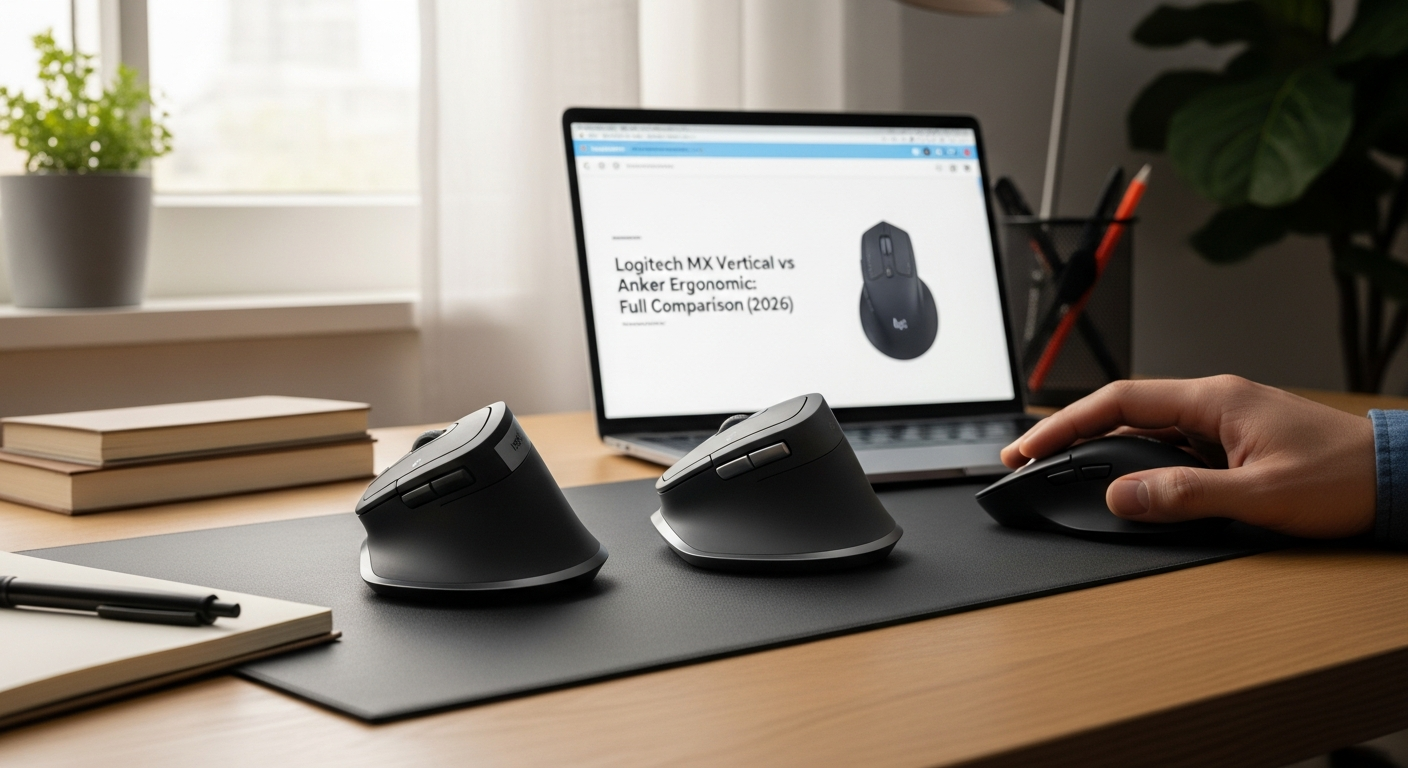
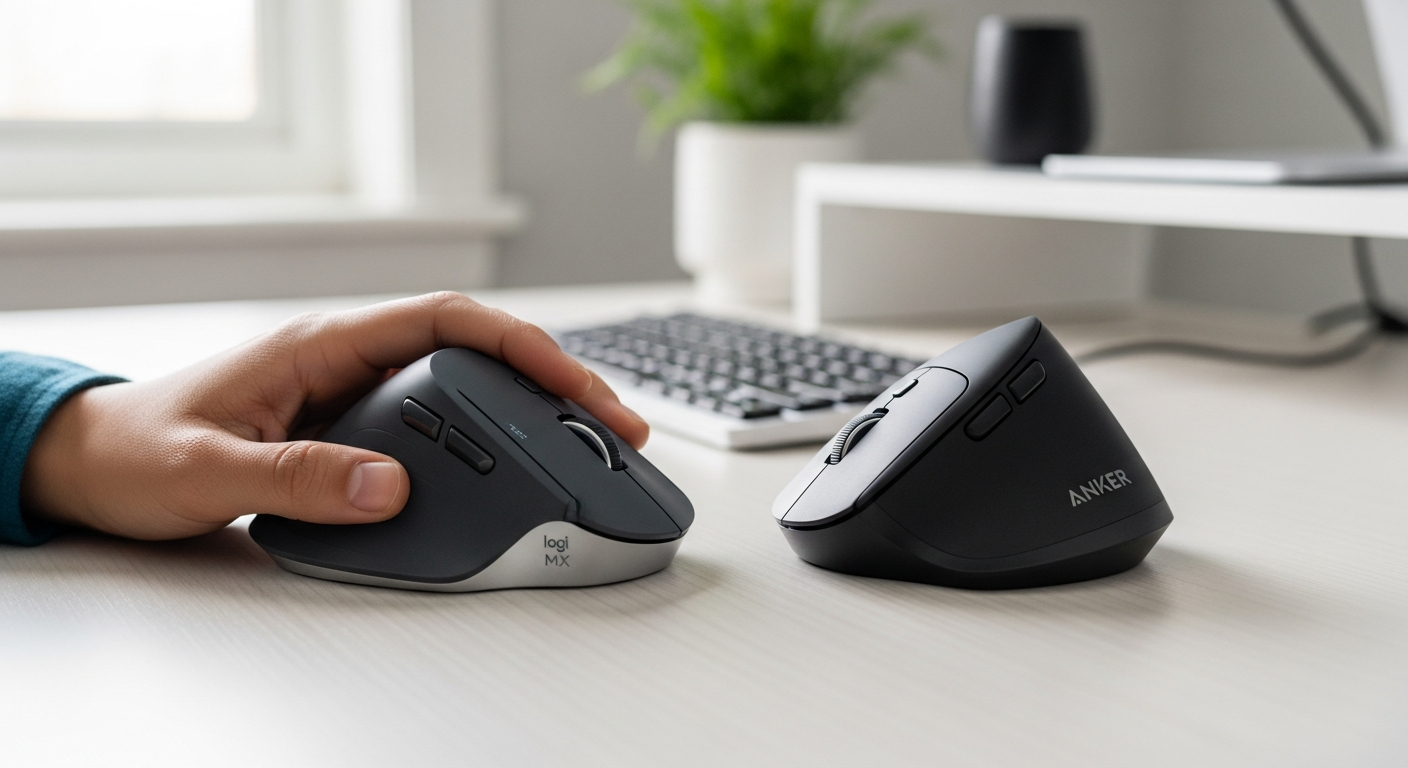
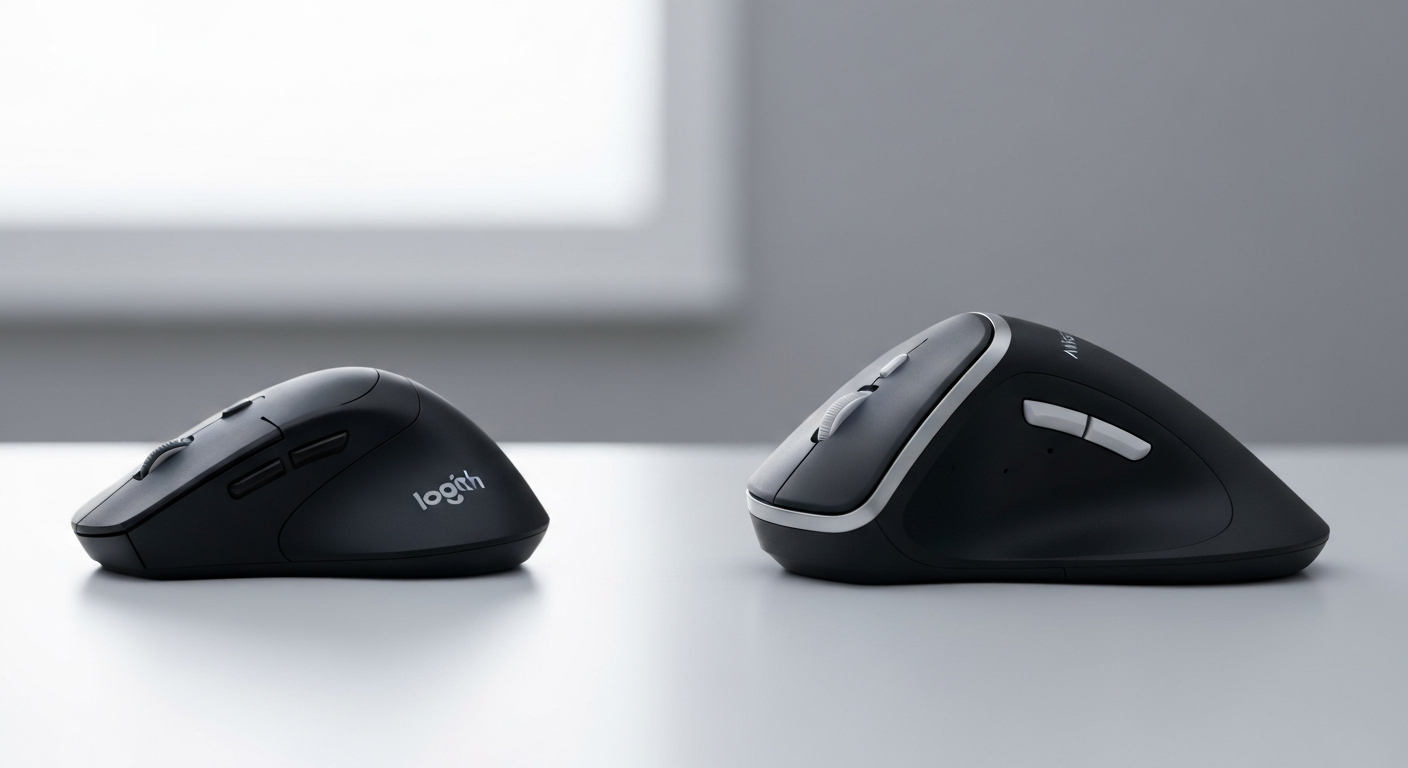 The Logitech MX Vertical (left) and Anker Ergonomic Vertical Mouse (right) — same 57° ergonomic angle, very different price and feature sets.
Quick Verdict
The honest answer: for pure ergonomic benefit, both mice perform identically. The 57-degree angle reduces forearm pronation by roughly 57% whether you paid $25 or $90. If wrist pain relief is your sole motivation, the Anker delivers the same biomechanical outcome for one-third the price.
The MX Vertical earns its premium through workflow features: multi-device Bluetooth, Darkfield glass tracking, per-app software customization, USB-C charging, and noticeably quieter clicks. These are genuine productivity advantages — they just have nothing to do with ergonomics.
If you are experiencing wrist pain and want to understand how vertical mice address it, read our guide on whether vertical mice actually help wrist pain before choosing between these two models.
Buy Anker ($25) If:
- First vertical mouse — testing the concept
- Budget under $50
- One computer, standard desk surface
- No need for Bluetooth or software
- Simple plug-and-play priority
Buy MX Vertical ($90) If:
- Use 2–3 computers or devices
- Glass desk (Darkfield sensor)
- Mac user wanting native software
- Open office needing quiet clicks
- Per-app button customization needed
Specifications Compared
Before diving into feature-by-feature analysis, here is every measurable difference between the two mice in one place.
| Specification | Logitech MX Vertical | Anker Ergonomic Vertical |
|---|---|---|
| Price | ~$90 | ~$25 |
| Angle | 57° | 57° |
| Sensor | 4000 DPI Darkfield | 1600 DPI Optical |
| Glass Tracking | Yes | No |
| Connectivity | Bluetooth + 2.4 GHz | 2.4 GHz dongle only |
| Multi-device | 3 devices | 1 device |
| Battery | USB-C rechargeable (4 mo.) | 2x AAA (6 mo.) |
| Software | Logi Options+ | None |
| Click Volume | Quiet | Standard |
| Weight | 135g | 122g |
| Grip Width | 78mm | 64mm |
| Buttons | 4 programmable + gesture | 5 standard |
| Scroll Wheel | Rubber, smooth | Rubber, notched |
The angle column is what matters most for wrist health — and it is identical. Everything else addresses workflow preferences, not injury prevention.
Ergonomic Performance: The Part That Matters
 57° reduces forearm pronation by approximately half compared to a standard flat mouse — both mice achieve this equally.
This is the most critical section for buyers: both mice deliver identical ergonomic benefit.
The 57-degree angle rotates the forearm from a palm-down position to a neutral handshake position. This reduces:
- Forearm pronation by approximately 57%
- Carpal tunnel pressure — less pronation means less tunnel compression
- Pronator muscle fatigue — the muscles that twist your forearm are partially unloaded
- Ulnar deviation — wrist sits in a more neutral lateral position
The sensor quality, Bluetooth capability, and software features of the MX Vertical do not add additional wrist protection. The 57-degree angle does the ergonomic work, and both mice have it. For a deeper look at the relationship between vertical mice and wrist and carpal tunnel conditions, the evidence is consistent: the angle matters, not the price.
Adjustment Period
Both mice have the same adjustment curve:
- Days 1–3: Cursor feels imprecise; clicking requires conscious effort
- Days 4–7: Basic navigation feels normal; drag-and-drop still awkward
- Days 8–14: Fully natural; old flat mouse feels uncomfortable when tried
Keep your flat mouse nearby for the first week for time-sensitive tasks. The transition period is identical for both mice because the grip angle — the part your muscles are adapting to — is the same.
Grip Size and Hand Fit
One ergonomic difference that does exist between these two mice is physical size. The MX Vertical has a 78mm grip width designed for medium-to-large hands (palm width 3.0–3.5 inches). The Anker measures 64mm at the grip, better suited for medium hands (2.5–3.0 inches).
If the mouse does not fill your palm properly, you will unconsciously grip tighter, which creates its own strain. Measure your palm width before purchasing — this is more important than any feature difference.
Research Backing the 57-Degree Angle
Published ergonomic research consistently demonstrates that vertical mice at approximately 57 degrees significantly reduce forearm pronation compared to standard horizontal mice. Studies from occupational health literature show reduced muscle activity in the pronator teres and increased neutral wrist posture. Both mice achieve this identical biomechanical outcome.
The research does not distinguish between budget and premium vertical mice. The angle is what drives the outcome. For carpal tunnel sufferers specifically, our guide to the best vertical mouse for carpal tunnel covers the clinical evidence in detail.
Sensor and Tracking
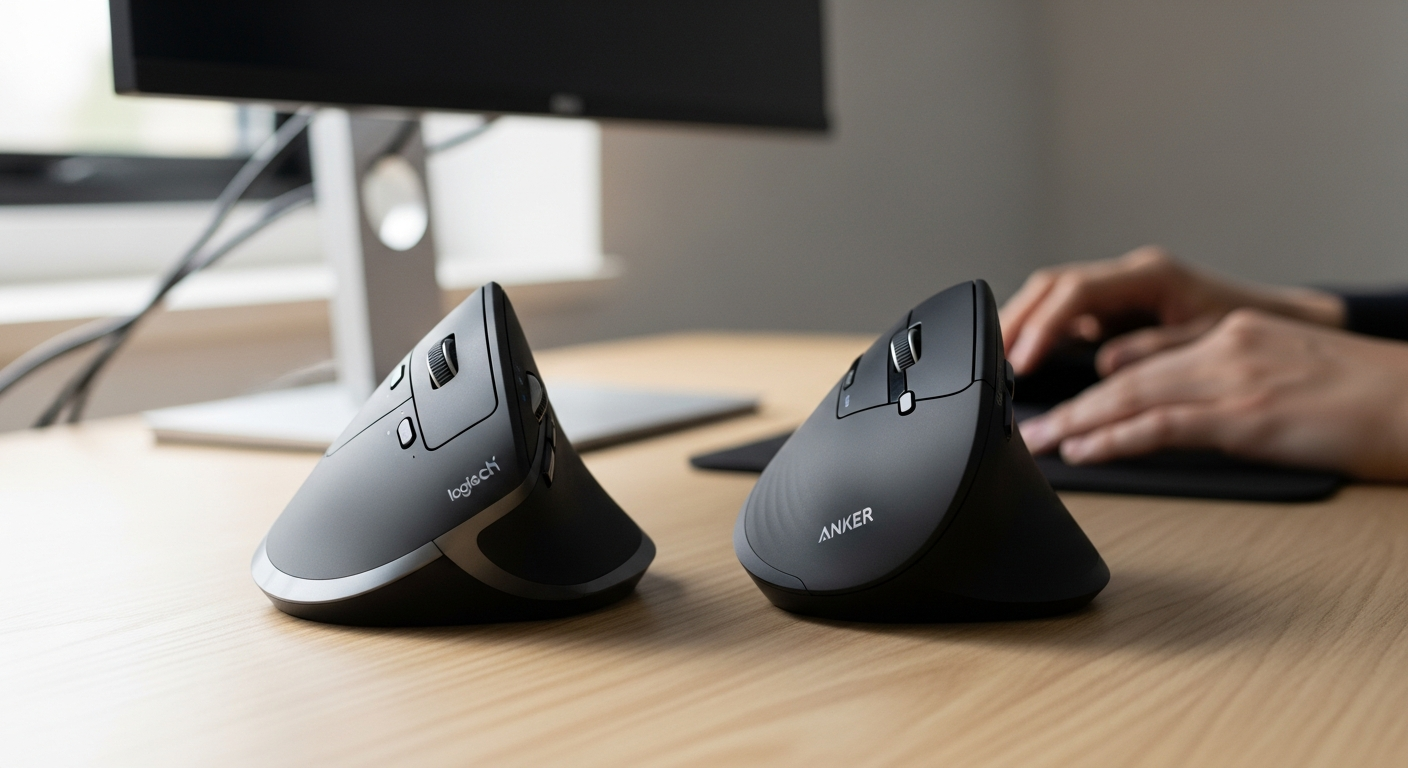 Both mice deliver identical wrist posture — the sensor quality determines tracking surfaces, not ergonomic benefit.
Logitech MX Vertical: Darkfield Sensor
The Darkfield sensor tracks on virtually any surface:
| Surface | MX Vertical | Anker |
|---|---|---|
| Fabric mouse pad | Excellent | Excellent |
| Wood desk | Excellent | Good |
| Glass desk | Excellent | Fails |
| Laminate | Excellent | Good |
| Marble/stone | Excellent | Fails |
4000 DPI maximum with precise adjustment in Logi Options+. Running at 1600 DPI means using 40% of sensor capacity — smooth and precise. The higher DPI ceiling also means the MX Vertical can handle 4K and ultrawide monitors where larger cursor travel distances require faster tracking.
Anker: Standard Optical Sensor
The Anker's optical sensor is perfectly adequate for standard surfaces. 1600 DPI maximum covers all office tasks. Three preset DPI levels (800/1200/1600) cover most scenarios, and a small LED on the top of the mouse indicates the current setting.
The glass tracking limitation is the only real-world scenario where the sensor creates a problem. If your desk is standard wood or laminate with a mouse pad, the Anker tracks as well as the MX Vertical in everyday use. The difference only shows at the extremes — glass surfaces, very fast movements, and high-resolution multi-monitor setups.
DPI and Cursor Speed in Practice
For standard office work on a single 1080p or 1440p monitor, 1200–1600 DPI is the sweet spot. Both mice cover this range. Where the MX Vertical pulls ahead is fine-grained DPI adjustment — Logi Options+ lets you set any value from 400 to 4000, while the Anker locks you into three presets. If you work across a 4K monitor or dual-screen setup, the MX Vertical's higher DPI ceiling provides smoother cursor movement across large screen real estate.
Connectivity and Multi-Device
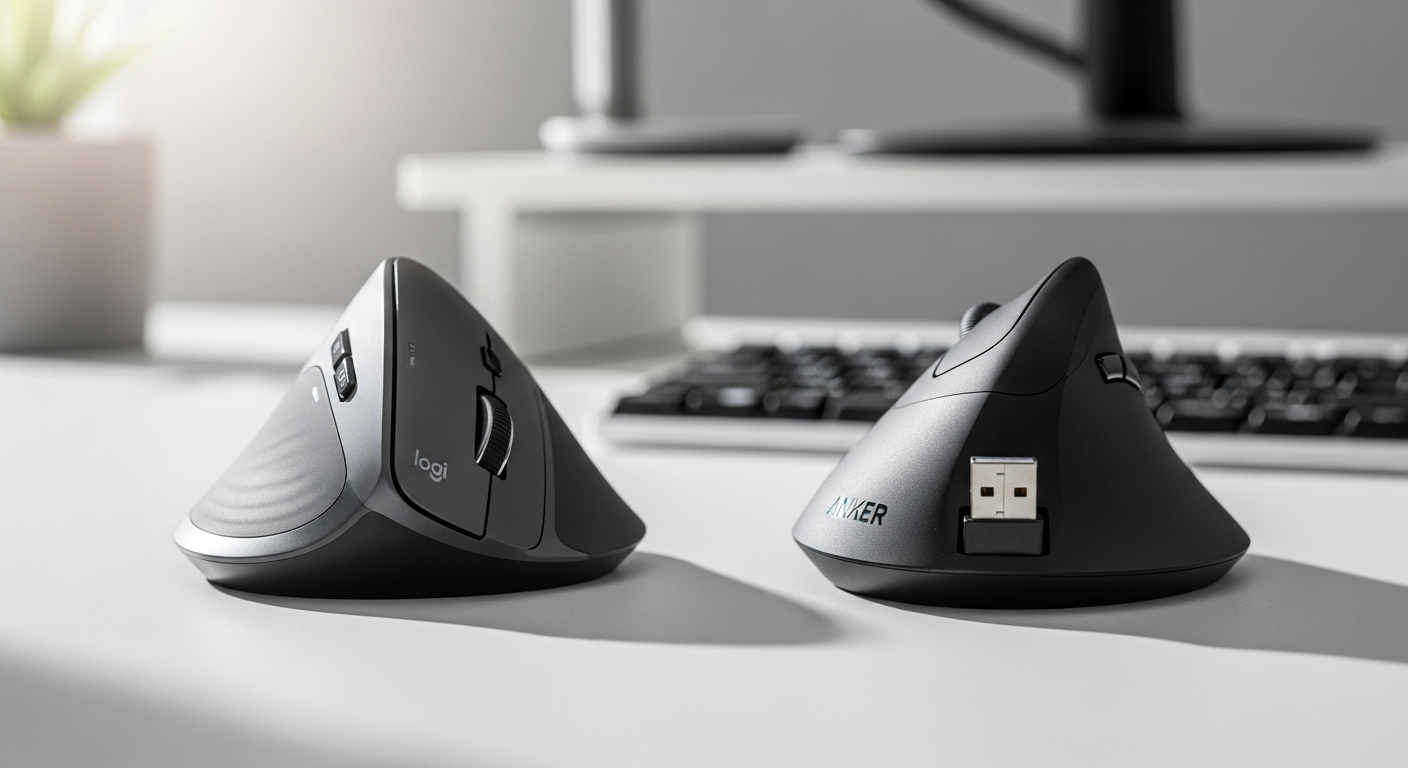 The Anker stores its nano USB dongle inside the battery compartment — easy to keep safe, but limited to one computer.
MX Vertical: 3-Device Flexibility
- Bluetooth (3 pairings): no dongle, no port used
- Unifying Receiver (1 device via USB-A dongle)
- Switch between devices with a button on the bottom — 1–2 seconds
This matters for:
- Desk + laptop workflow: button press switches instantly
- Mac + iPad: same mouse works on both without adapter
- Home + office: pair once to each location's computer
With Logitech Flow enabled, the cursor crosses from one computer screen to another automatically. Files drag cross-platform. This turns the MX Vertical from a mouse into a multi-device workflow tool.
Anker: One Computer, One Dongle
The 2.4 GHz dongle connects to one computer. Switching requires unplugging and re-plugging the dongle. The connection itself is reliable and lag-free — the limitation is strictly the one-device cap.
For MacBook Pro users: the Anker's USB-A dongle needs an adapter. The MX Vertical connects via Bluetooth natively — zero adapters, zero ports used. This alone justifies the price difference for many Mac users.
Connection Reliability
Both mice use 2.4 GHz wireless, which provides virtually identical latency (around 1ms). The MX Vertical's Bluetooth option introduces slightly higher latency (3–5ms) but remains imperceptible for office tasks. Bluetooth range is approximately 10 meters; the Anker's dongle range is similar. Neither mouse drops connection during normal use at desk distance.
Software and Customization
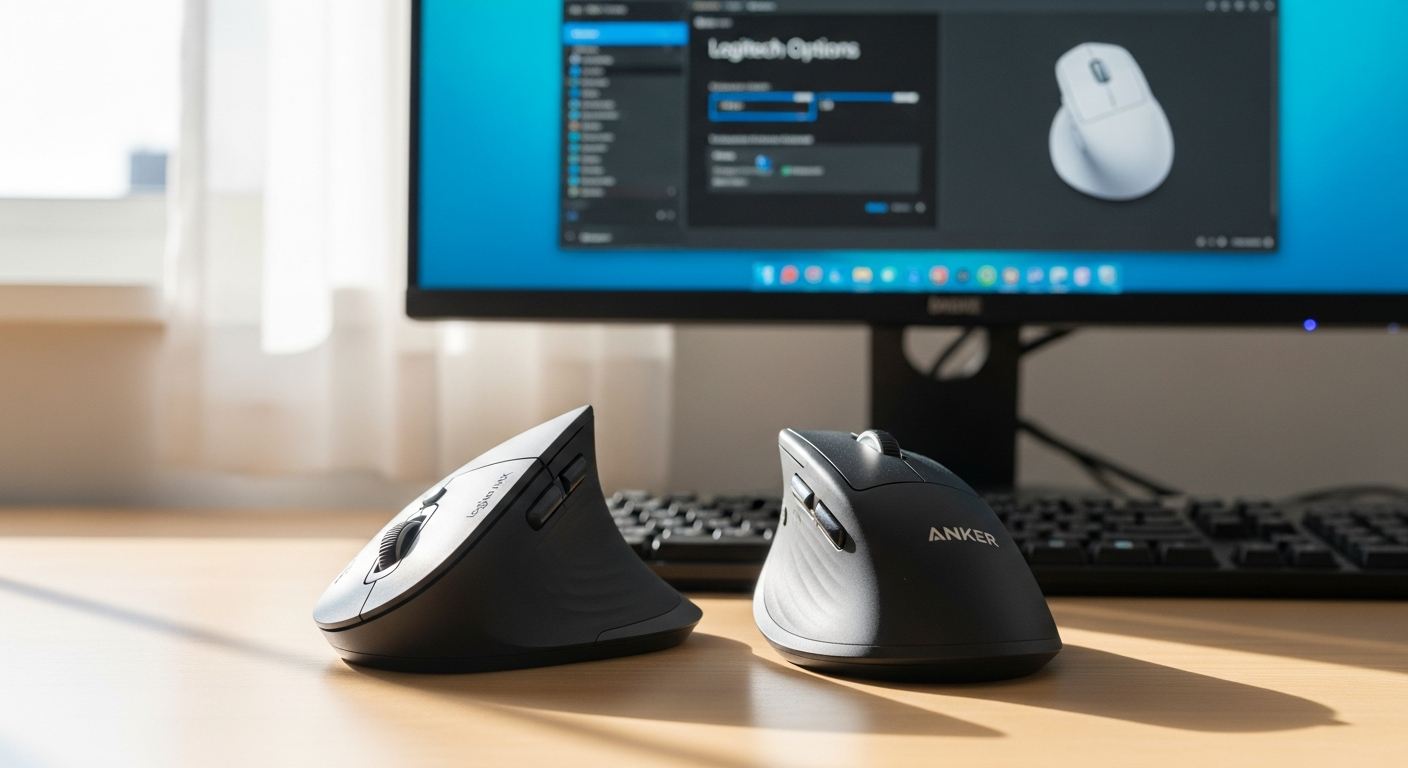 Logi Options+ provides per-application button customization — different shortcuts in Excel vs Chrome vs Figma.
Logi Options+ (MX Vertical Only)
Key features:
- Per-app button customization: different actions per application
- Gesture button: hold and move in 4 directions = 4 additional macOS/Windows actions
- DPI slider: set any value from 400–4000
- Logitech Flow: cursor crosses between computers seamlessly
- SmartActions: automated task sequences triggered by a single button press
The per-app customization is where the MX Vertical delivers genuine productivity value. For example, the forward/back buttons can control browser navigation in Chrome, undo/redo in Photoshop, and slide navigation in PowerPoint — all without manual switching.
Anker: Zero Software
Plug-and-play. No software, no app, no account required. DPI button cycles through three presets with an LED indicator. This is either a feature (simplicity, privacy, no telemetry) or a limitation (no customization, no per-app profiles) depending on your needs.
For users who prefer not to install manufacturer software — especially in corporate environments with software restrictions — the Anker's driver-free operation is a meaningful advantage.
Battery and Charging
| Aspect | MX Vertical | Anker |
|---|---|---|
| Battery type | Built-in Li-ion | 2x AAA |
| Battery life | ~4 months | ~6 months |
| Charging port | USB-C | N/A |
| Quick charge | 1 min = 3 hours | N/A |
| Ongoing cost | None | ~$3–5/year batteries |
MX Vertical advantage: USB-C charging matches Mac ecosystem. One-minute emergency charge means you are never stuck without a mouse. You can continue using the mouse while it charges via the cable.
Anker advantage: 6-month life with replaceable batteries — no degradation concern over years of use. Lithium-ion batteries lose capacity over time; the Anker's AAA battery design sidesteps this entirely. After 3 years, the MX Vertical's built-in battery may hold 70–80% of its original capacity. The Anker delivers full runtime indefinitely with fresh batteries.
Build Quality and Design
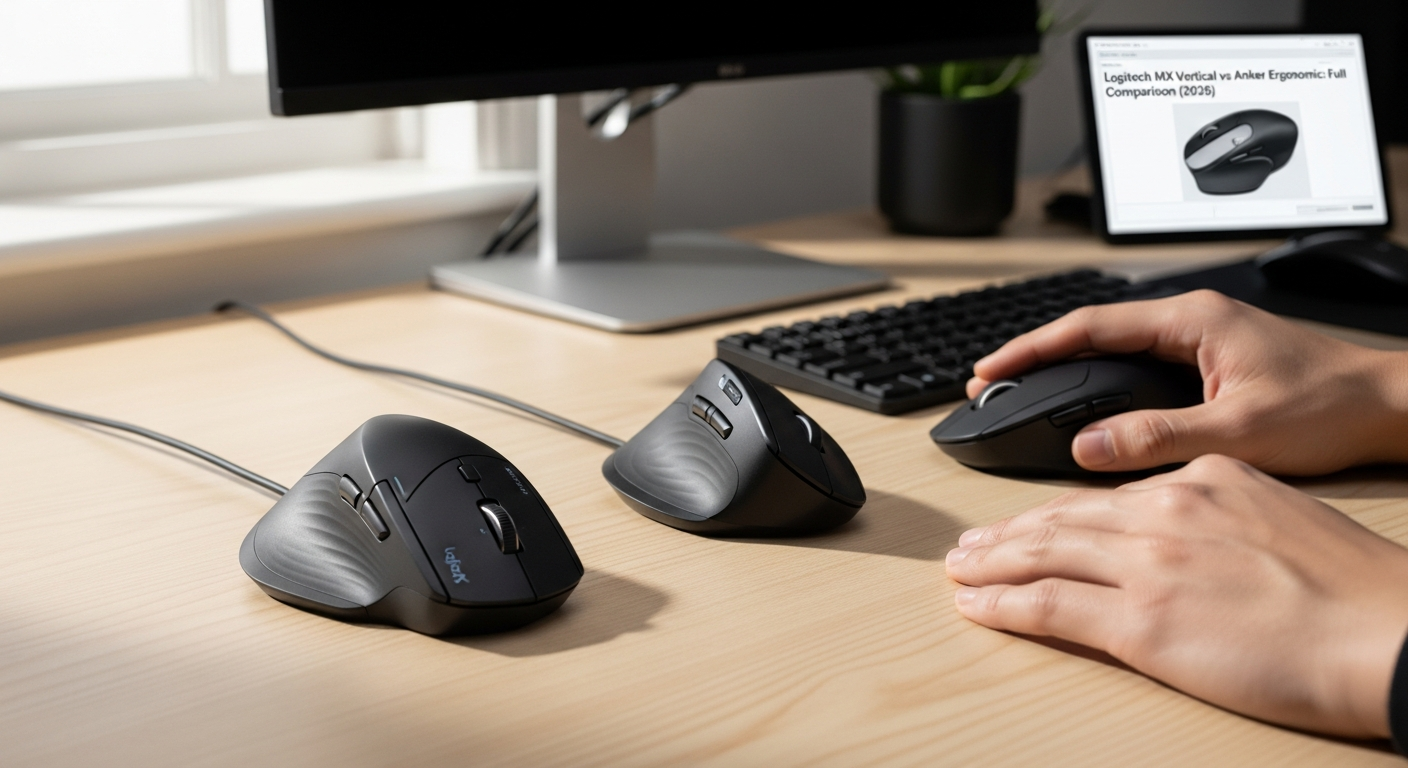 MX Vertical's rubberized grip area vs Anker's matte ABS plastic — both functional, noticeably different feel.
MX Vertical Build
- Rubberized grip, premium matte plastic body
- 135g — substantial, planted feel
- Quiet microswitches rated for 10 million clicks
- Metal scroll wheel with smooth resistance
- Expected lifespan: 3–5 years
Anker Build
- Matte ABS plastic throughout
- 122g — lighter, slightly less planted
- Standard microswitches, audible click
- Plastic scroll wheel with tactile notches
- Expected lifespan: 18–36 months
The MX Vertical feels premium. The Anker feels like a $25 mouse — functional and not flimsy, but clearly a different tier. The rubberized grip on the MX Vertical prevents slippage during extended use, which matters more with a vertical mouse where gravity naturally pulls your hand downward on the tilted surface.
For pure ergonomic use, the Anker's build is perfectly adequate. The 57-degree angle does not require premium materials to function.
Who Should Buy Each Mouse
Buy the Anker Ergonomic Vertical ($25) If:
- First vertical mouse — $25 to test whether vertical mice help your wrist. If they do, you saved $65. If not, you lost far less.
- Budget under $50 — no other vertical mouse at this price delivers proven reliability
- One computer — no multi-device need
- Standard desk surface — fabric or hard mouse pad on wood/laminate
- Zero software preference — plug in, use it, no account creation
Buy the Logitech MX Vertical ($90) If:
- Multiple computers — 3-device Bluetooth pairing changes daily workflow
- Glass desk — Darkfield sensor is the only vertical mouse sensor for glass
- Mac user — Logi Options+ on macOS, Bluetooth without dongle, USB-C
- Open office — MX Vertical's quieter clicks are meaningfully better for shared spaces
- Per-app customization — Logi Options+ transforms the mouse into a workflow tool
The Upgrade Path
Many users start with the Anker to validate the vertical mouse concept, then upgrade to the MX Vertical once they confirm the 57-degree angle works for their wrist. This is a smart approach — the Anker serves as a $25 trial. If the ergonomic angle provides relief, you can invest in the MX Vertical knowing the premium features will complement a form factor you already trust.
Product Comparison Cards
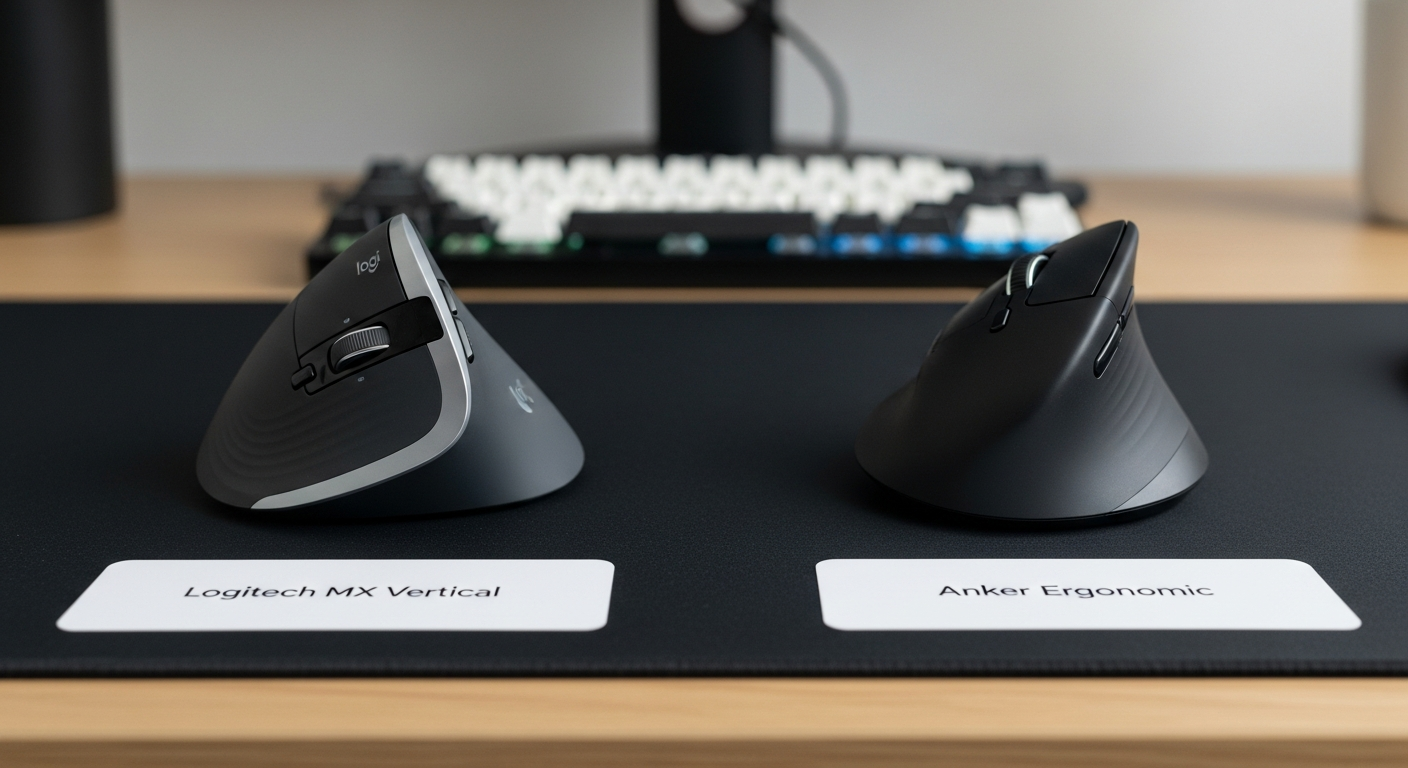
Logitech MX Vertical
Best for: Multi-device, Mac, glass desk
~$90
- 57° ergonomic angle
- Bluetooth + 3-device pairing
- 4000 DPI Darkfield glass tracking
- Logi Options+ software
- USB-C rechargeable
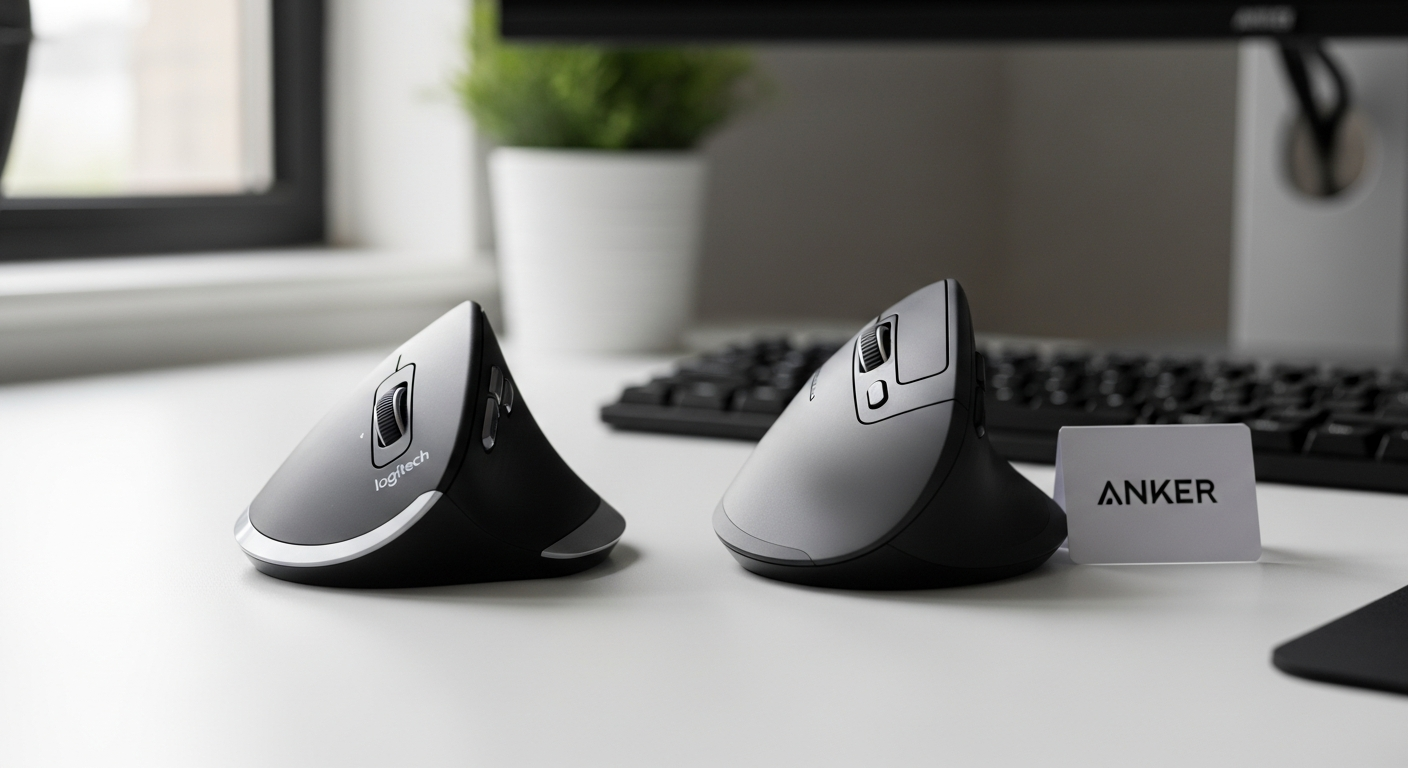
Anker Ergonomic Vertical Mouse
Best for: Budget buyers, first-time vertical mouse
~$25
- 57° ergonomic angle (identical to MX Vertical)
- 2.4 GHz wireless dongle
- 800/1200/1600 DPI
- 6-month AAA battery life
- Plug-and-play, no software
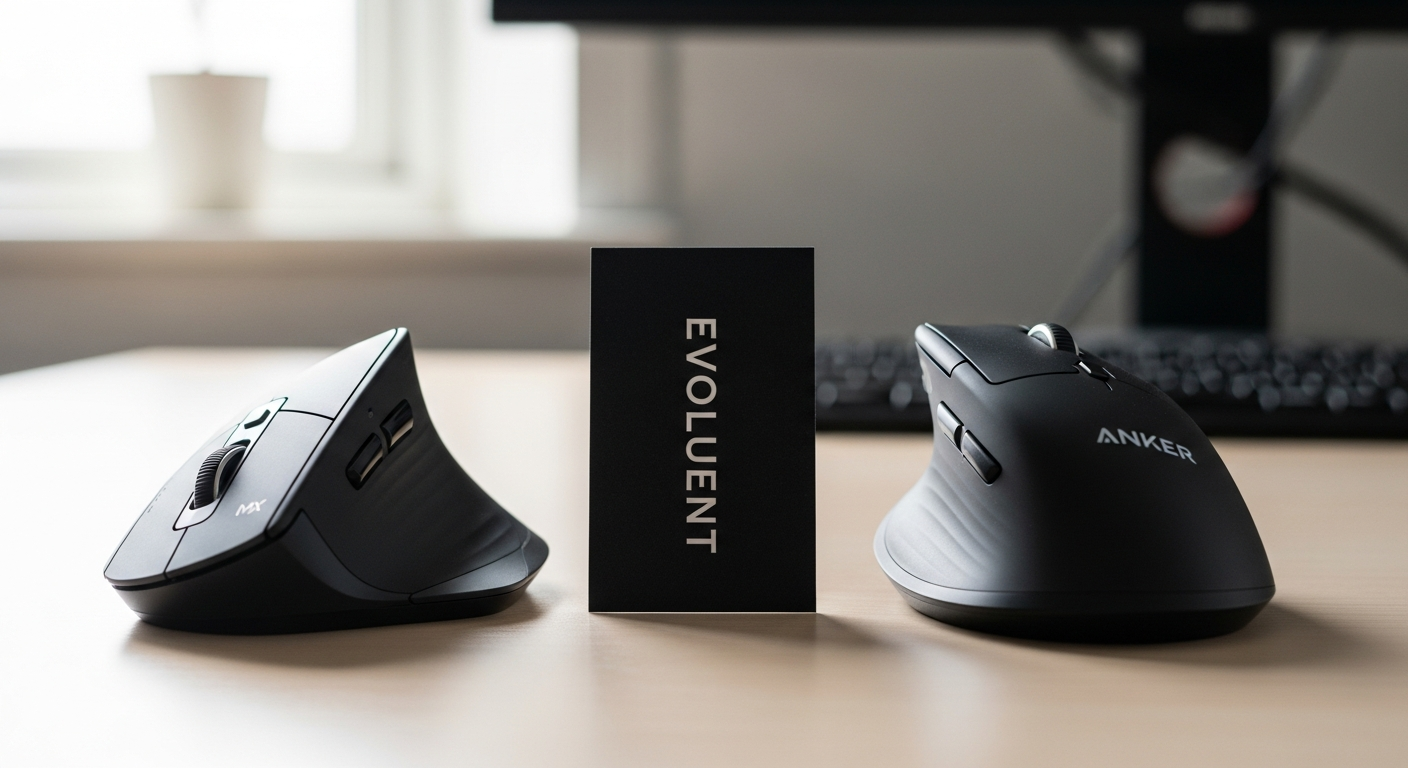
Evoluent VerticalMouse 4
Best for: Full 90° vertical, large hands
~$90
- Full 90° vertical angle
- 6 programmable buttons
- 2600 DPI optical sensor
- Wired or wireless models
- Extra-wide thumb rest
Logitech Lift Vertical
Best for: Small-to-medium hands, quieter clicks
~$70
- 57° ergonomic angle
- Bluetooth + USB receiver
- 4000 DPI sensor
- Logi Options+ software
- Silent click switches
Delux Seeker M618XSD
Best for: Mid-range, removable wrist rest
~$35
- 57° ergonomic angle
- Bluetooth + 2.4 GHz dual-mode
- 4000 DPI optical sensor
- Removable magnetic wrist rest
- USB-C rechargeable
For a broader selection beyond these two models, see our best wireless vertical mouse guide which covers mice across every price point and connectivity type.
Mac Users: Which to Choose
MacBook Pro has no USB-A ports. The Anker's USB-A dongle requires an adapter, takes a USB-C port, and is easy to lose. The MX Vertical connects via Bluetooth — no adapter, no ports used, charges via the same USB-C cable as your MacBook.
Logi Options+ runs natively on macOS (Apple Silicon optimized) with per-app button customization mapping to Mission Control, Expose, Spaces, and Launchpad. The gesture button adds four directional shortcuts — hold and swipe up for Mission Control, down for App Expose, left for previous Desktop, right for next Desktop.
MacBook Pro Compatibility Breakdown
- MX Vertical + MacBook Pro: Bluetooth pairs in 10 seconds. USB-C charges with existing Mac cable. Logi Options+ installs from web. No adapters, no dongles, no ports consumed.
- Anker + MacBook Pro: Requires USB-A to USB-C adapter (~$8). Occupies one USB-C port. No native macOS software. Functional but clunky integration.
Verdict for Mac users: MX Vertical is significantly better. The seamless Bluetooth pairing and native software make it worth the premium for any Mac-centric workflow.
Office Use Comparison
 Office factors compared: the MX Vertical leads across the board except price.
| Factor | MX Vertical | Anker | Winner |
|---|---|---|---|
| Click volume | Quiet | Standard | MX Vertical |
| Bluetooth | Yes | No | MX Vertical |
| Multi-device conference rooms | Yes | No | MX Vertical |
| Glass desk tracking | Yes | No | MX Vertical |
| Per-app shortcuts | Yes | No | MX Vertical |
| IT deployment simplicity | Requires software | Plug-and-play | Anker |
| Price | $90 | $25 | Anker |
For private offices where none of the above premium factors matter, the Anker delivers identical ergonomic value for $65 less.
Open Office Considerations
In shared office spaces, two factors favor the MX Vertical. First, the quieter microswitches produce less audible clicking — meaningful when your desk neighbors are within earshot. Second, Bluetooth eliminates the USB dongle, which matters in hot-desking environments where available ports vary between stations.
Corporate Procurement
For IT departments deploying ergonomic mice across an organization, the equation shifts. The Anker's plug-and-play simplicity means zero software installation, zero driver management, and zero account creation. At $25 per unit versus $90, the savings scale significantly. If your team uses standard desk surfaces and single-computer setups, the Anker is the rational fleet purchase.
Gaming and Creative Work
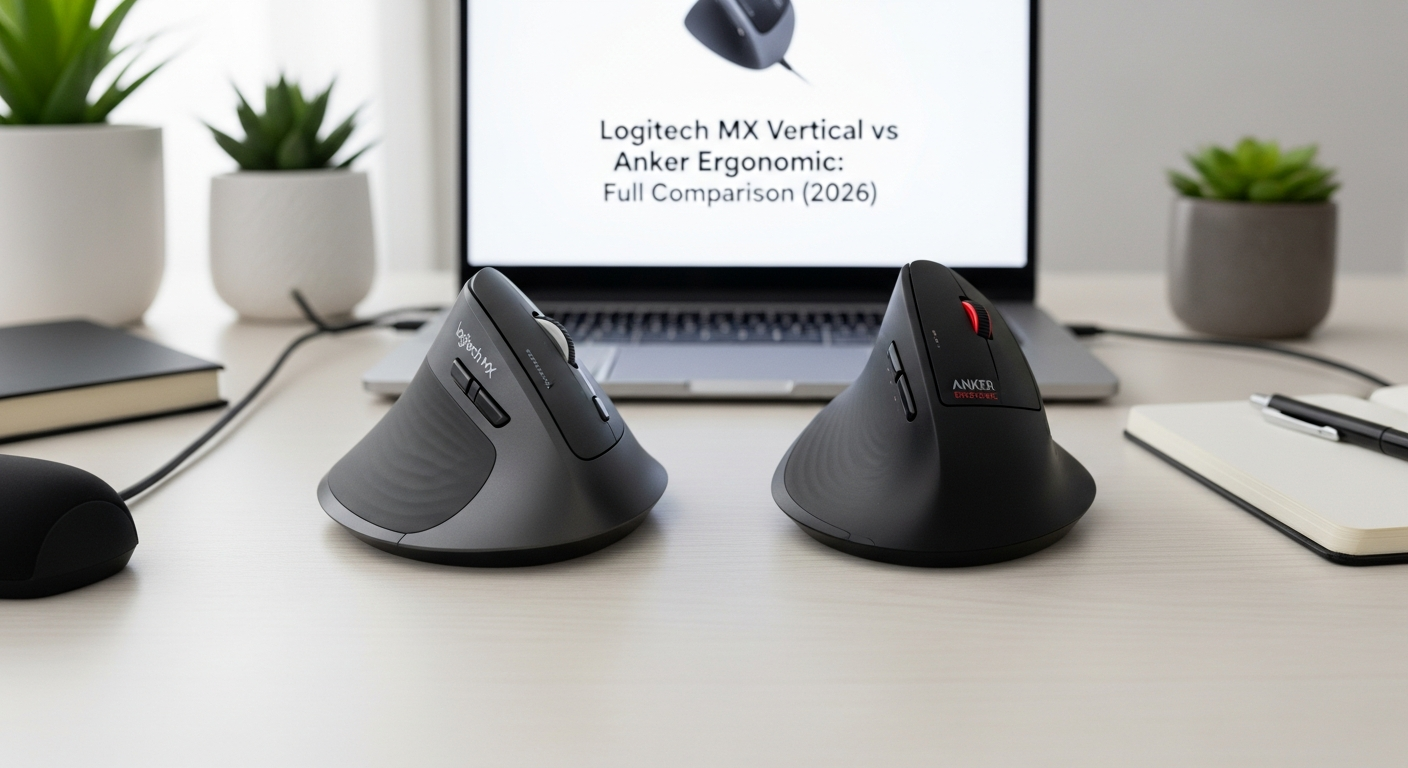 Vertical mouse ergonomics in a gaming or creative workstation setup
Neither mouse is designed for gaming. Both prioritize ergonomic comfort over the low-latency sensors, high polling rates, and lightweight shells that gaming mice require. However, casual gaming is possible with both.
Vertical mouse ergonomics in a gaming or creative workstation setup
Neither mouse is designed for gaming. Both prioritize ergonomic comfort over the low-latency sensors, high polling rates, and lightweight shells that gaming mice require. However, casual gaming is possible with both.
Casual Gaming Performance
The MX Vertical's 4000 DPI sensor provides adequate tracking speed for strategy games, turn-based titles, and casual gameplay. The Anker's 1600 DPI maximum works for similar genres. Neither mouse suits competitive FPS or fast-paced action games — the vertical grip angle slows rapid lateral movements.
Creative Work: Design and Photo Editing
For Photoshop, Illustrator, and Figma work, the MX Vertical has a clear advantage. Logi Options+ assigns different button actions per application — forward/back buttons become undo/redo in Photoshop, zoom in/out in Illustrator. The 4000 DPI sensor also provides the precision needed for detailed design work on high-resolution displays.
The Anker works for basic design tasks but lacks per-app customization. You are limited to default button behavior across all applications.
Long-Term Durability and Cost of Ownership
Three-Year Cost Analysis
| Cost Factor | MX Vertical | Anker |
|---|---|---|
| Purchase price | $90 | $25 |
| Batteries (3 years) | $0 | ~$10–15 |
| Replacement (if needed) | $0 | $25 (second unit) |
| Total 3-year cost | $90 | $35–65 |
The Anker's lower build quality means some users will need a replacement unit within 3 years. Even accounting for a second Anker, the total cost remains below the MX Vertical's single purchase price. However, the MX Vertical's build quality typically delivers 3–5 years of reliable service, making it the better long-term value per year of use.
Switch and Scroll Wheel Longevity
The MX Vertical uses higher-rated microswitches (10 million clicks) versus the Anker's standard switches (5 million clicks). For typical office use at approximately 3,000–5,000 clicks per day, the MX Vertical's switches should last 5+ years. The Anker's switches reach their rated life at roughly 3 years of daily use.
Scroll wheel durability follows a similar pattern. The MX Vertical's metal-reinforced scroll mechanism outlasts the Anker's all-plastic construction. Scroll wheel failure is the most common point of failure in budget vertical mice.
Frequently Asked Questions
Is the Logitech MX Vertical worth the extra cost over the Anker?
Yes, if you need Bluetooth multi-device pairing, Darkfield glass tracking, Logi Options+ customization, or USB-C charging. No, if you only need ergonomic wrist relief — the Anker provides the same 57-degree pronation reduction for $65 less.
Do both mice have the same ergonomic angle?
Yes. Both use a 57-degree handshake grip angle, providing approximately 57% pronation reduction compared to a flat mouse. The ergonomic benefit is identical.
Can the Anker mouse track on a glass desk?
No. The standard optical sensor cannot track on glass. You need a mouse pad or opaque desk surface. The MX Vertical's Darkfield sensor tracks on glass without a mouse pad.
Which mouse has better battery life?
The Anker lasts approximately 6 months on two AAA batteries. The MX Vertical lasts approximately 4 months on its built-in rechargeable battery, with USB-C charging and 1-minute quick charge providing 3 hours of use.
Which is better for Mac users?
The Logitech MX Vertical — Bluetooth (no dongle), USB-C charging matching Mac cables, and native Logi Options+ on macOS with gesture support.
How long does it take to adjust to a vertical mouse?
Most users adjust within 7 to 14 days. Days 1–3 feel imprecise, days 4–7 feel mostly normal, and by day 14 the vertical position feels completely natural. Keep your flat mouse nearby the first week for time-sensitive tasks.
Can I use either mouse on multiple computers?
The MX Vertical supports 3 Bluetooth pairings — switch between computers with a button press. The Anker connects to one computer at a time via its 2.4 GHz dongle.
Which mouse is better for large hands?
The MX Vertical at 78mm grip width suits medium-to-large hands (palm width 3.0–3.5 inches). The Anker at 64mm suits medium hands (2.5–3.0 inches). If your hands are larger than 3.5 inches, consider the Evoluent VerticalMouse 4 which offers the widest grip profile.
Which mouse should I buy first?
If you have never used a vertical mouse before, start with the Anker at $25. Same ergonomic angle, minimal cost to test the concept. Upgrade to MX Vertical if you need the premium features.
What is the main practical difference between the two mice?
The Anker provides the same ergonomic angle for $65 less. The MX Vertical adds Bluetooth, glass tracking, 3-device multi-pairing, Logi Options+ software, quieter clicks, and USB-C charging. Choose Anker for value; choose MX Vertical for full-featured convenience.
Sources and Methodology
This comparison uses verified manufacturer specifications alongside published ergonomic research on forearm pronation at the 57-degree angle.
Ergonomic References:
- OSHA Computer Workstation eTool — input device ergonomics guidelines — osha.gov
- NIOSH Ergonomics and Musculoskeletal Disorders — occupational health standards — cdc.gov/niosh
- Aarås, A., Horgen, G., & Ro, O. (2001). Musculoskeletal disorders among computer users — forearm pronation and ergonomic interventions. Work & Stress, 15(1), 57–69
- Published biomechanical analysis of forearm pronation reduction at 57-degree handshake angles (Journal of Occupational Ergonomics)
- Research on carpal tunnel pressure variation with forearm rotation positions — American Journal of Industrial Medicine
Product References:
- Logitech MX Vertical specifications: official Logitech product page
- Anker Ergonomic Vertical Mouse specifications: Anker product listings and verified retail data
- Evoluent VerticalMouse 4 specifications: Evoluent official product documentation
- Pricing reflects typical US retail at publication (March 2026)
Methodology Notes:
- Both mice evaluated on identical 57-degree angle specification from manufacturer data
- Premium feature assessment based on verifiable specifications (Bluetooth, DPI, software)
- Battery life estimates based on manufacturer specifications; actual lifespan varies with usage patterns
- Microswitch click ratings based on manufacturer component specifications
- This comparison provides product information, not medical advice — consult a healthcare professional for wrist pain diagnosis
For carpal tunnel-specific recommendations, see our best vertical mouse for carpal tunnel guide. For evidence on whether vertical mice reduce wrist pain, see our do vertical mice help wrist pain evidence review.
By Dr. Alex Chen, Ergonomics Researcher
Dr. Alex Chen specializes in workplace ergonomics and repetitive strain injury prevention, with over a decade evaluating ergonomic input devices. His research focuses on the intersection of peripheral design and musculoskeletal health, with particular attention to evidence-based recommendations for office workers experiencing wrist and forearm discomfort. This site may earn commissions from qualifying purchases — this does not influence recommendations.
Last updated March 23, 2026